


Shipping your online shop orders
Charges that you decide, the label and tracking through Sendcloud, or the carrier entered by hand.
Set your charges and your departure address
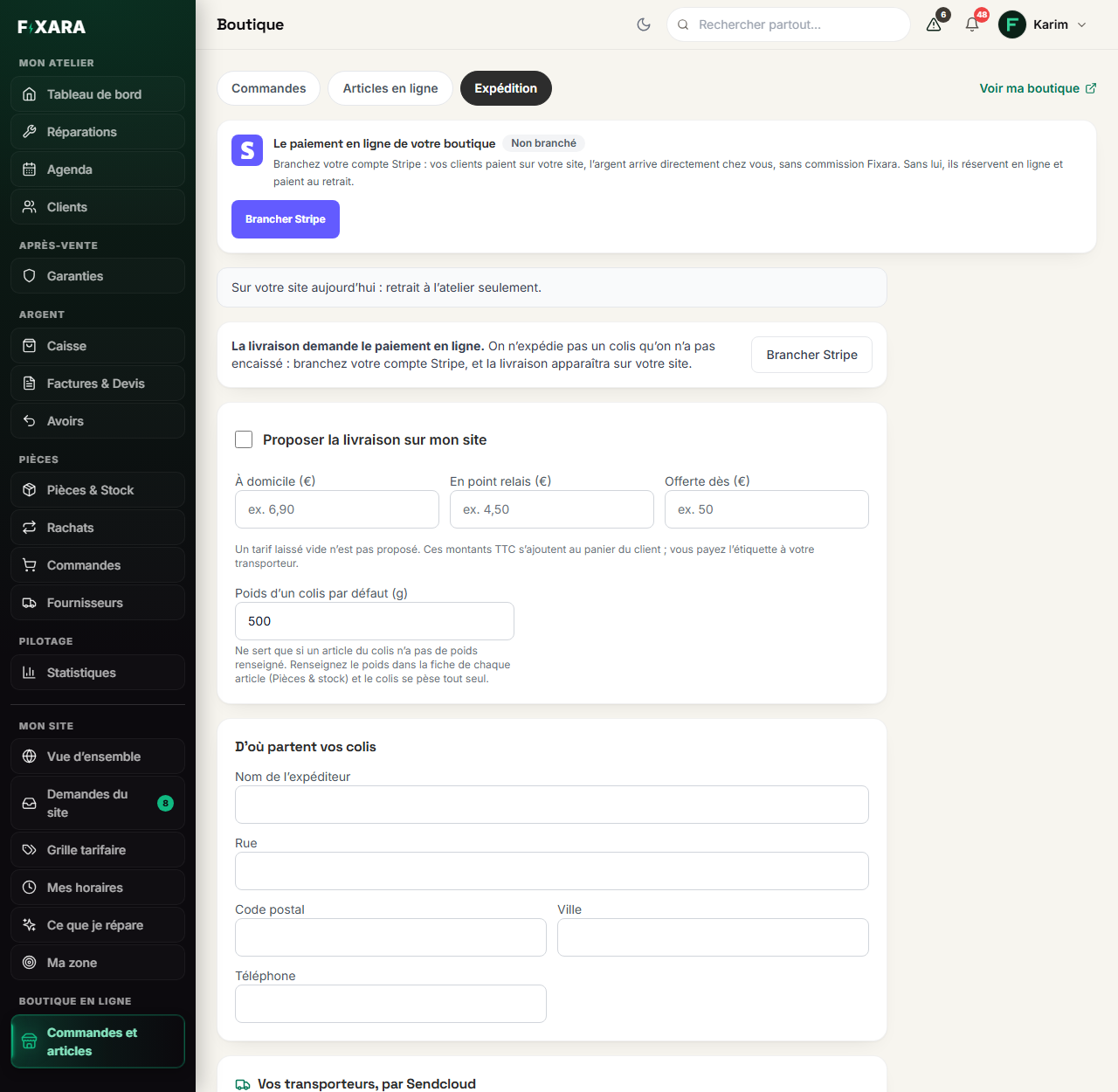
Expédition (Shipping) tab of Orders and items. Tick Proposer la livraison sur mon site (Offer delivery on my website), then your charges: a flat rate to the home, a flat rate to a pick-up point, and if you like, free delivery from a certain amount. A rate left empty is not offered. The default parcel weight is only used for items whose weight is not filled in on their record.
Below, D’où partent vos colis (Where your parcels leave from): your shipping address. Then Vos transporteurs, par Sendcloud (Your carriers, through Sendcloud): the key of your Sendcloud account, to create labels and track parcels.
 123
1231The delivery tab.
2The address your parcels leave from.
3Sendcloud: labels, pick-up points and tracking.
- Delivery requires online payment: you do not ship a parcel you have not been paid for. As long as Stripe is not connected, your website only offers collection.
- Pick-up points require Sendcloud: it is what provides the list of pick-up points.
- Without Sendcloud, you can still ship to the home and enter the tracking number by hand.
To offer free delivery, set the flat rate to zero
“0” in Offerte dès (Free from) means “no free delivery”, not “free from €0”. To offer free shipping to everyone, it is the flat rate you set to zero.
Tracking comes before the sale
An order’s Expédier (Ship) button creates the label (or records your tracking number), then records the sale. A parcel without tracking does not go out, and the label is never created twice. Your customer receives an “on its way” e-mail, with the tracking link, then “delivered”.
A customer sends their order back
With Sendcloud, you can send them a return label by e-mail. When the parcel arrives, Retour reçu (Return received) issues the credit note, puts the item back in stock, then refunds the customer, in that order.