


The journey of a repair, column by column
Five columns, two of which are waiting stages rather than work. What each status means, and what your customer sees.
All your repairs in progress live in Repairs. A ticket moves from column to column: by drag and drop on a computer, with buttons on a phone. Two columns are waiting stages rather than work: they exist so you can see what is sitting idle.
Read the board
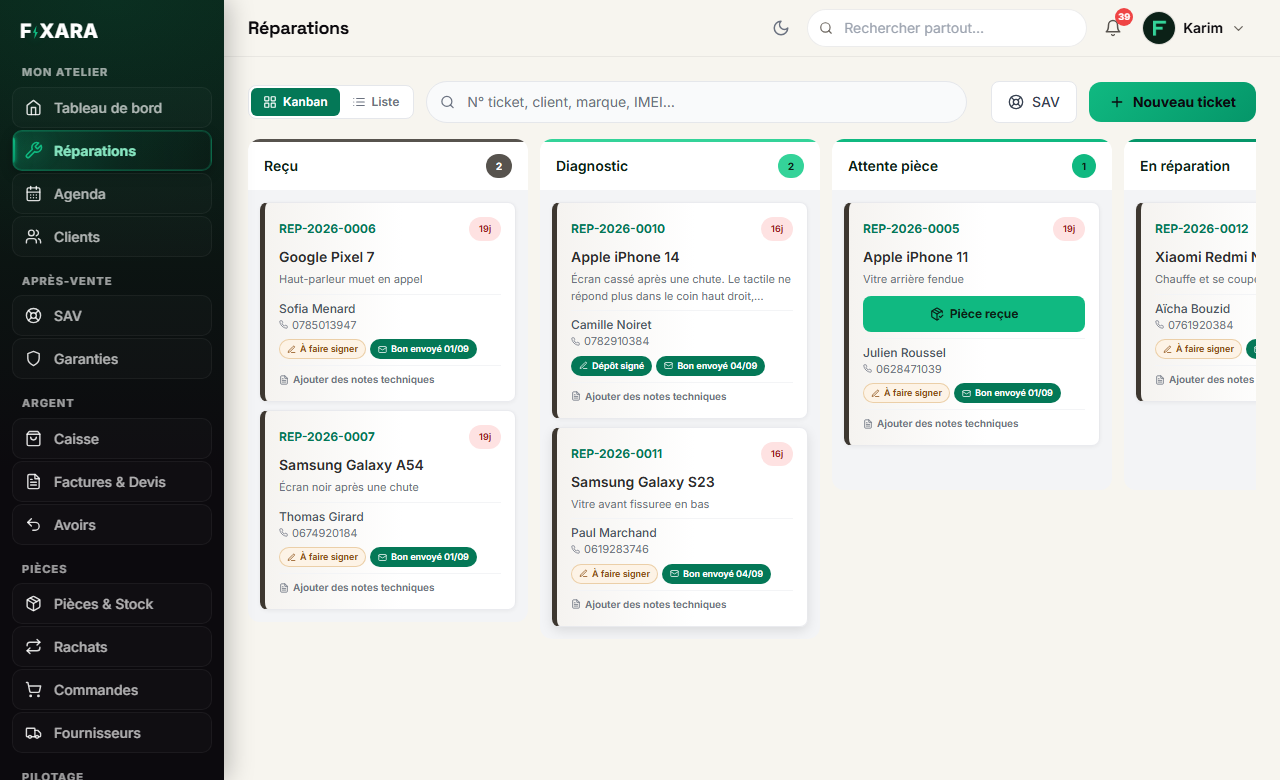
One column per status, with the number of tickets at the top. Each card shows the ticket number, the device, the fault, the customer and their phone number, and a small “22j” badge: the number of days since drop-off. It stays green up to 3 days, then turns to an alert after a week.
At the top, three ways to look: Kanban (the columns), Liste (List: to search and export as CSV) and Compacte (Compact: smaller cards, to see more tickets at once). The search bar finds a ticket by its number, the customer, the brand or the IMEI.
 123456
1Kanban or List: the board to work, the list to search.
2The compact view: smaller cards, more tickets on screen.
3A device comes back? After-sales opens from here.
4How many days the device has been with you.
5The part has arrived: one click and the ticket moves to repair.
6The customer is here: “Livrer” (Deliver) opens the checkout.
On Friday evening, look at the red badges: these are devices sitting idle for more than a week, often a customer to call back.
| Status | What it means |
|---|---|
| Reçu (Received) | The device has arrived. The drop-off receipt can be printed and signed. |
| Diagnostic (Diagnosis) | You are looking for the fault. This is also where the ticket waits if you have sent a quote. |
| Attente pièce (Waiting for part) | The work is on hold pending a supplier order. The customer sees it on their tracking page. |
| En réparation (In repair) | Approval obtained, the device is on the bench. |
| Prêt (Ready) | Finished, waiting for the customer to come. The customer receives the “your device is ready” email. |
| Livré (Delivered) | Handed back and paid. The invoice is issued, the ticket leaves the board. |
The “Pièce reçue” (Part received) button
A card in Waiting for part has a Pièce reçue (Part received) button: it moves the ticket to repair in one click. Your customer sees “Part ordered” and then “Part received, arrived on…” appear on their tracking page, without you writing anything.
Open a ticket: everything is done from its page
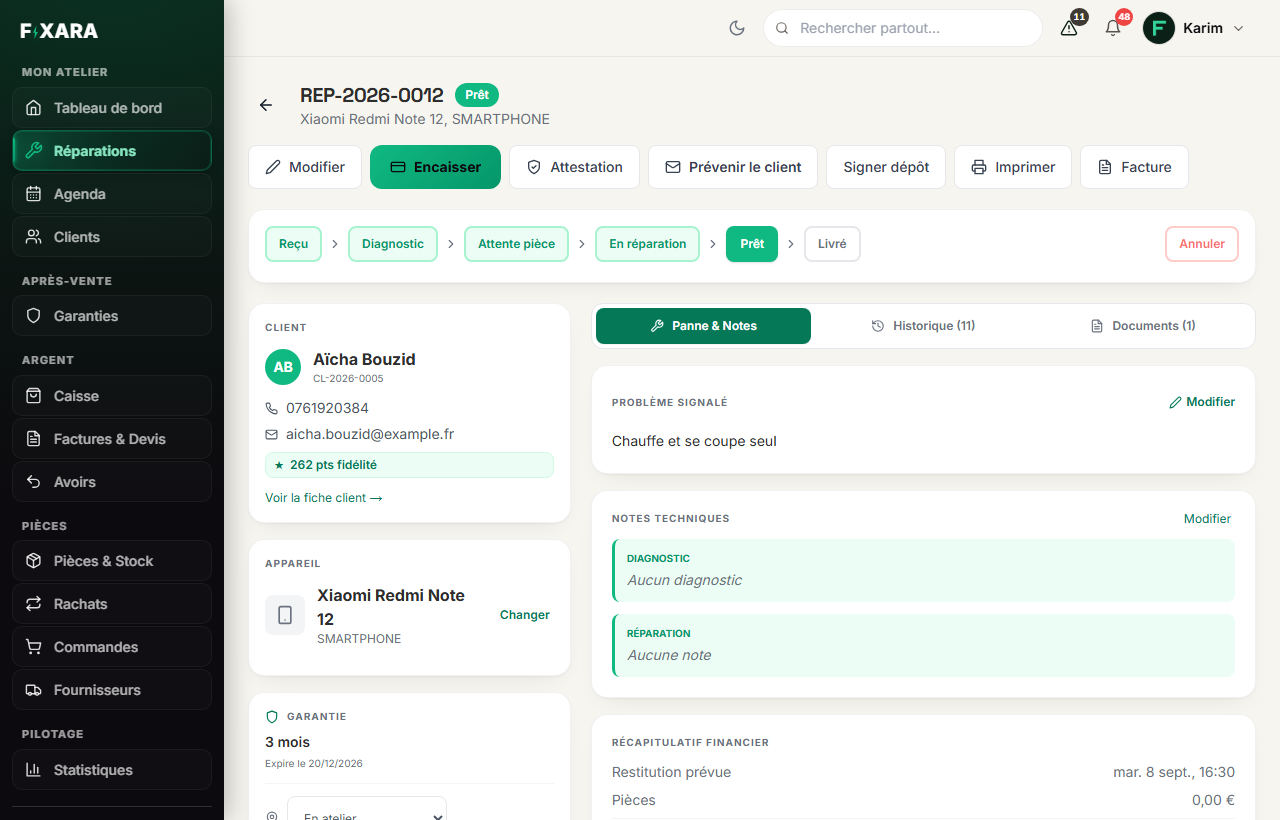
Clicking a card opens the ticket page. At the top, the actions: Encaisser (Take payment), Attestation (the “beyond repair” certificate for an insurer), Prévenir le client (Notify the customer), Signer dépôt (Sign drop-off), Imprimer (Print) and Facture (Invoice). Just below, the status bar: clicking a status moves the ticket to it.
On the left, the customer, the device and the warranty. On the right, three tabs: Panne & Notes (Fault & Notes: the reported fault and your diagnosis and repair notes), Historique (History: every change, with who made it and when) and Documents (drop-off receipt, quotes, invoices).
 123456
1Take payment: the same window as “Delivered”.
2Notify the customer by email. If you have SMS credits, a “Prévenir par SMS” (Notify by SMS) button is added.
3The label, the thermal receipt or the drop-off receipt.
4Clicking a status moves the ticket to it.
5Delivered: opens the checkout.
6Everything that happened on this ticket, and who did it.
Diagnosis, then Ready without a repair
If you move a ticket from Received or Diagnosis straight to Ready, Fixara asks what happened: repaired, not repaired, paid diagnosis (you enter the price), or not repaired, free diagnosis (0 €). The customer is notified with the right message: “your device is available, it could not be repaired”, without mentioning a warranty.
Four other statuses end a journey without delivery: not collected, returned without repair, beyond repair and cancelled. They leave the board, but can still be viewed in the List view.
Technical notes never go to the customer
What you note for yourself (“call back before 6 pm”, “promise nothing”) is added from the card, with the Ajouter des notes techniques (Add technical notes) link, or from the Fault & Notes tab of the ticket page. These notes appear on no document or email.