


Step 1 of 4
Your business: what is printed on all your documents
Name, address, company number, VAT, signature. It’s the first thing to do, because everything else relies on it.
Before you start
- Your company number (SIRET in France; it was checked against the business register when you signed up).
- Your VAT status: exempt (e.g. the French “franchise en base”), or VAT-registered with your rates.
- The name of your consumer mediator (a French legal requirement) and of your professional liability insurance.
- Your logo as an image (PNG, JPG or WEBP), if you have one. A photo taken with your phone works.
Everything you enter here goes on your documents and on your website: the header of your drop-off receipts, quotes and invoices, the e-mails and text messages sent to your customers, and your shop’s public page. That’s why it’s the first step: a signed drop-off receipt with an incomplete address can’t be fixed afterwards.
It’s all on a single page: Settings, Mon activité tab. It is split into three blocks, which you fill in from top to bottom: Mon activité (My business), Facturation & mentions légales (Invoicing & legal mentions), then Ce que l’outil fait sans vous (What the software does without you).
Your contact details
Open Settings, “Mon activité” tab
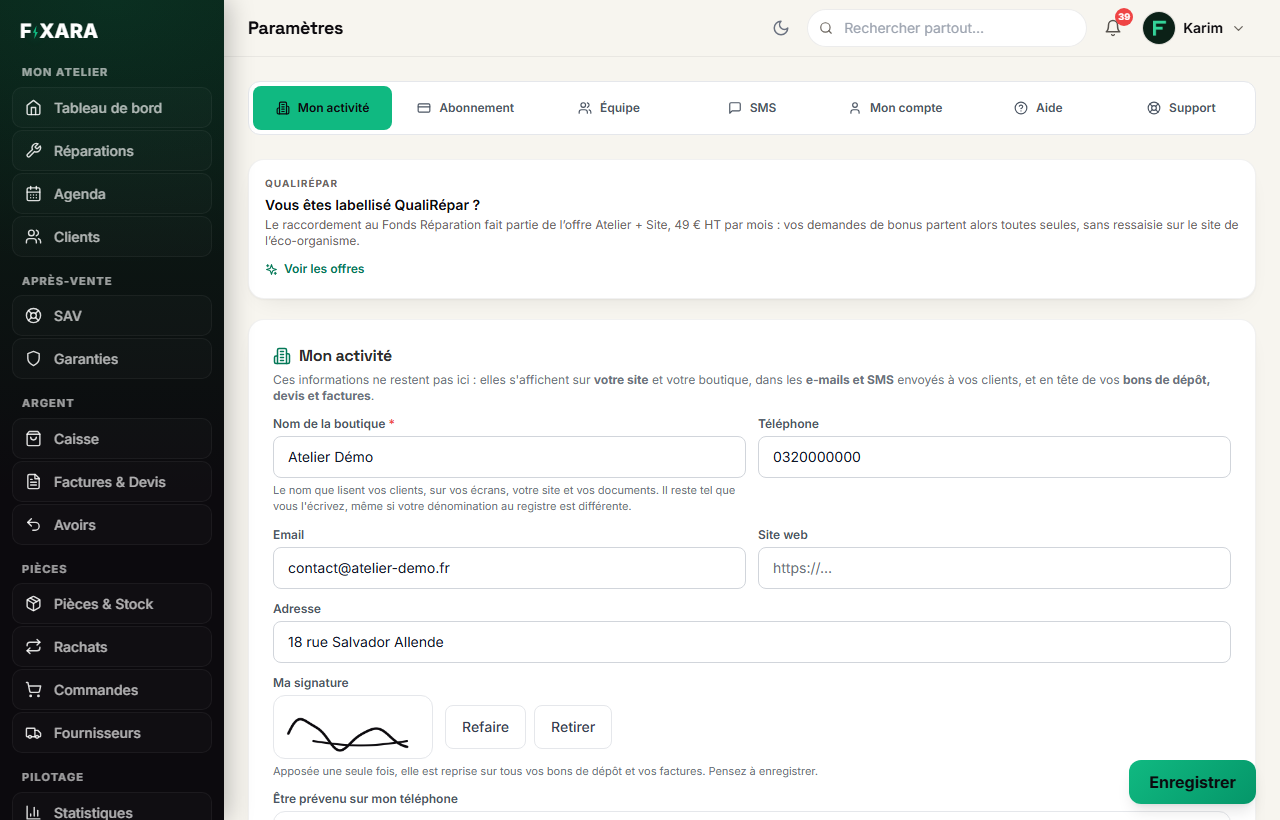
Click your first name at the top right, then Settings. The Mon activité (My business) tab is the first one in the bar and opens straight away.
 123
1231The “Mon activité” tab, the first one in the bar.
2The name your customers read: it doesn’t have to be your registered name, write it however you like.
3The full address: number, street, postcode and town. This is what goes on the invoice.
Fill in the name, phone, e-mail and address
Shop name (required), phone, e-mail, website if you have one, and address. Take your time over the address: an invoice can no longer be changed once issued.
The name is your trading name, not your registered company name. “Repar’Tout” and “EL GHANDOUR Youssef” can perfectly well coexist: the first on your screens and your website, the second in your legal mentions.
The shop’s phone number goes into the “your device is ready” text message
The text message is sent under the name FIXARA: your customer can’t reply to it. It’s your number, written in the message, that lets them call you to ask when to come by. Without a number, the message is worded differently, but your customer has no way left to reach you.
Sign once, and add your logo
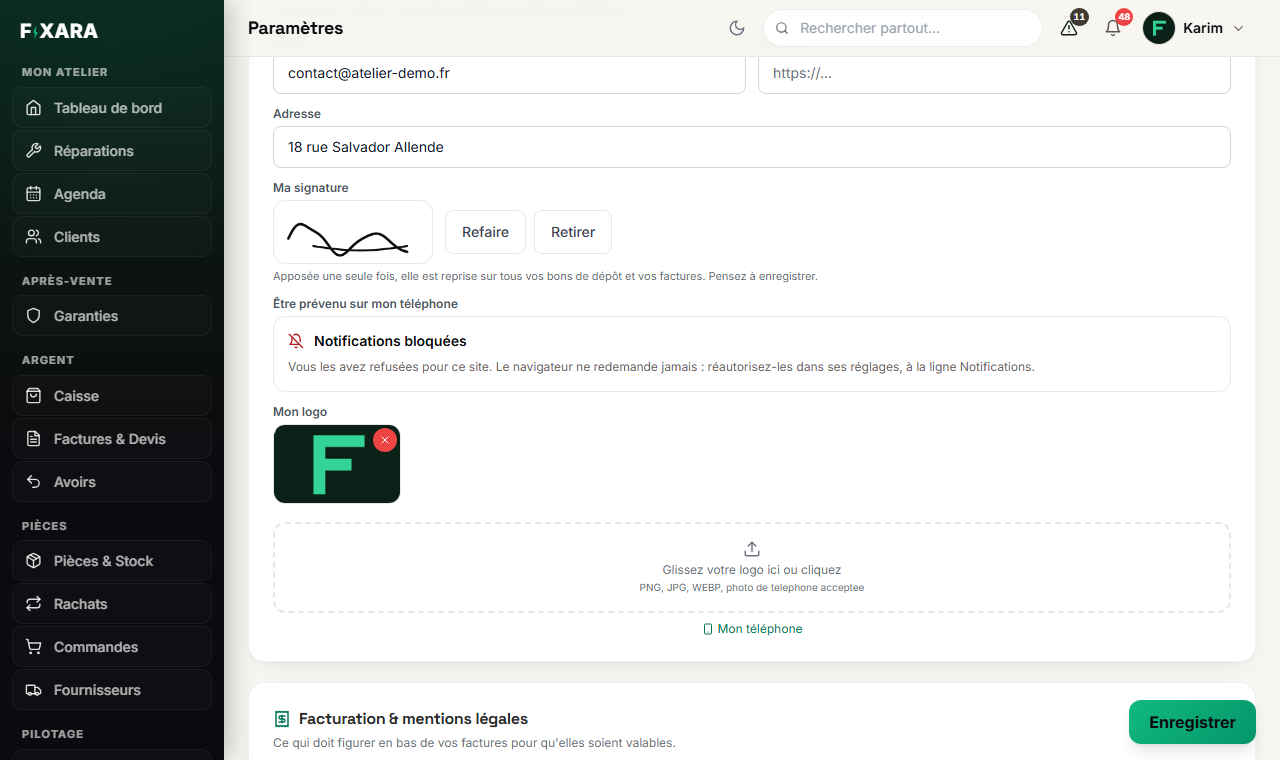
A little further down in the same block: Ma signature (My signature). You sign once, with your finger or the mouse, and it is reused on all your drop-off receipts, quotes, invoices, credit notes and certificates. Refaire (Redo) replaces it, Retirer (Remove) deletes it.
Just below, Mon logo (My logo): drag the image into the frame, or click it. The Mon téléphone (My phone) link shows a QR code: scan it and take the photo directly with your phone.
 123
1231Your signature, added once for all your documents.
2Your logo: it is printed at the top of your documents, and its colour styles your website.
3The “Enregistrer” (Save) button stays at the bottom right of the screen: nothing is kept without it.
Without a signature, the space set aside for it stays empty on every drop-off receipt your customer signs opposite.
Invoicing and legal mentions
Check your company number and choose your legal form
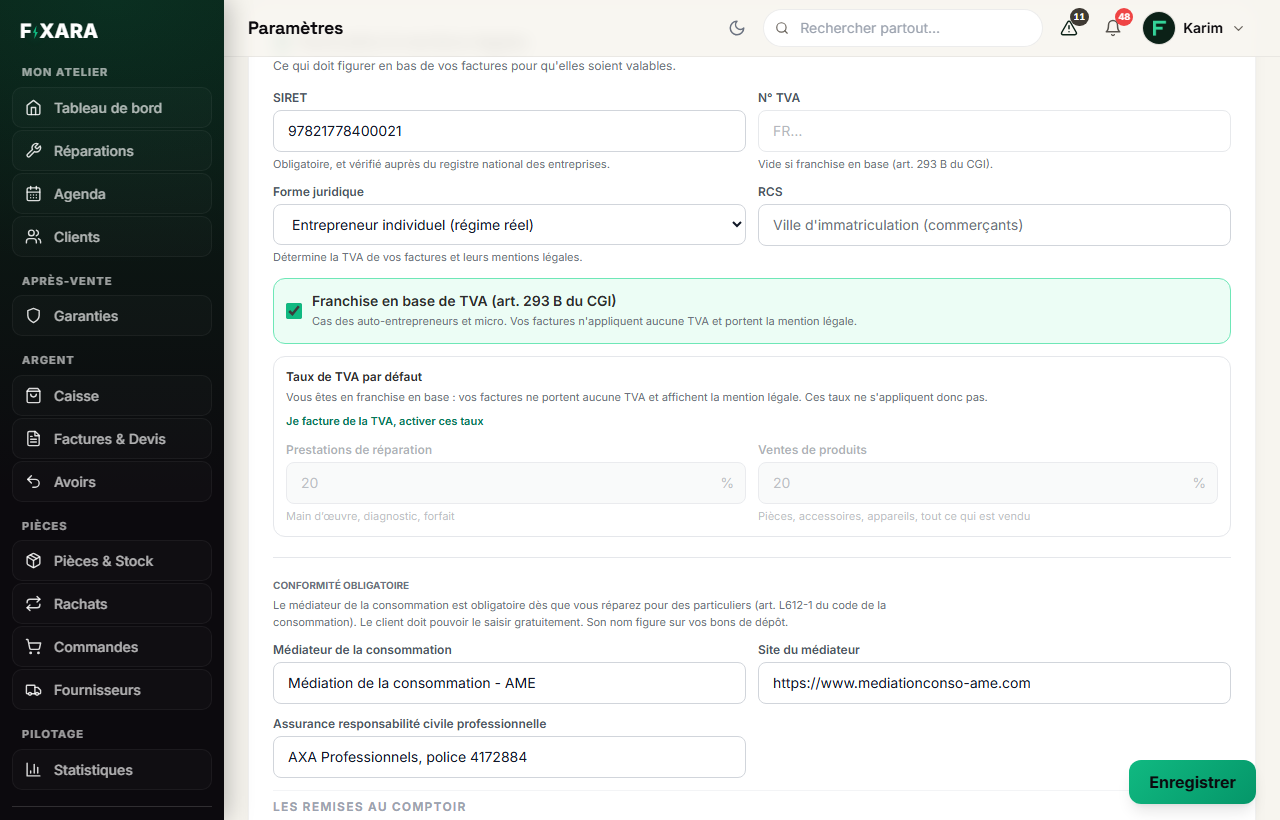
Second block on the page, Facturation & mentions légales (Invoicing & legal mentions). The company number (SIRET in France) is already filled in: it was checked against the national register when you signed up. The legal form (sole trader, micro-business, limited company…) decides the VAT on your invoices and their legal mentions. The RCS (France only) only concerns registered traders: enter the town of registration.
 1234
12341The company number (SIRET in France), checked against the national business register.
2The legal form: it decides which legal mentions are printed.
3Ticked: no VAT on your invoices, and the exemption mention (article 293 B in France) is added automatically.
4Your two default rates, if you charge VAT.
Set up your VAT
You are VAT-exempt (in France: franchise en base, micro-entreprise, auto-entrepreneur): leave the Franchise en base de TVA (VAT exemption) box ticked. Your invoices will carry no VAT and the legal mention will be printed automatically. Leave the VAT number field empty.
You charge VAT: click Je facture de la TVA, activer ces taux (I charge VAT, enable these rates), then enter your two default rates: one for repair services (labour, diagnosis, fixed price), one for product sales (parts, accessories, devices). Also enter your EU VAT number.
You need two rates because the same invoice almost always carries both labour and a part. They are only a starting point: when you take payment, each line can still be changed, and an invoice can carry two different rates.
Don’t tick the exemption “just to see”
Charging VAT when you’re not liable for it makes it payable, simply because you wrote it on the invoice. Not charging it when you are liable leaves you paying it out of your own pocket. If in doubt, ask your accountant before your first invoice: an issued invoice can only be corrected with a credit note.
Mediator, insurance and terms of sale
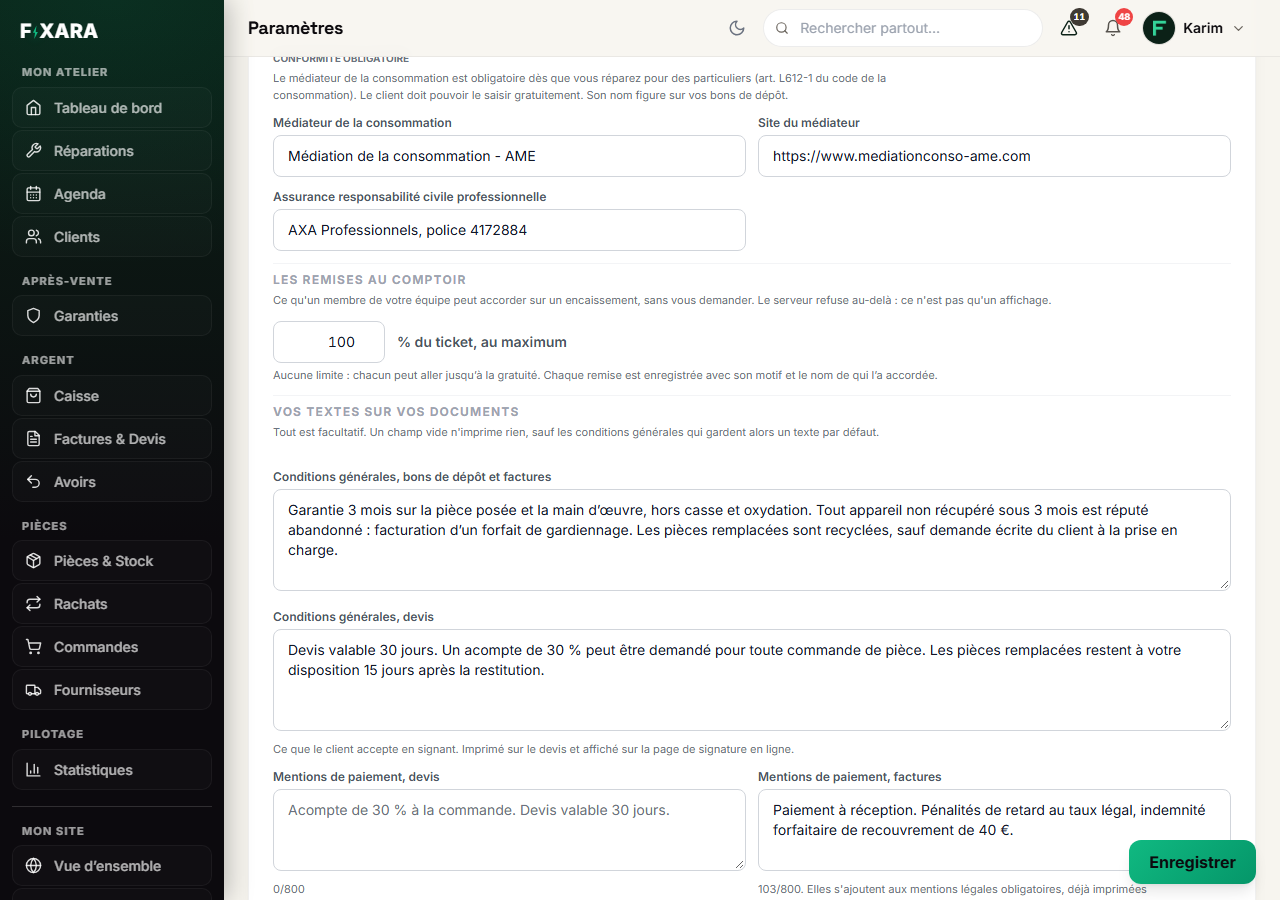
Still in the same block, Conformité obligatoire (Mandatory compliance): the name of your consumer mediator and its website address. In France it is required as soon as you repair for private individuals (article L612-1 of the French consumer code), and it is printed on your drop-off receipts. Just below: your professional liability insurance, with the insurer’s name and the policy number.
Further down, Vos textes sur vos documents (Your texts on your documents): your terms and conditions, once for drop-off receipts and invoices, once for quotes. This is what your customer accepts by signing: the warranty, what happens to a device that is never collected, replaced parts.
 123
1231Your mediator: required in France as soon as you repair for private individuals.
2Your professional liability insurance: the insurer and the policy number.
3Your terms and conditions: they are printed on every drop-off receipt and every invoice.
In between, Les remises au comptoir (Counter discounts): the maximum percentage a member of your team can give without asking you. Every discount is recorded with its reason and the name of whoever gave it.
Check the preview, then save
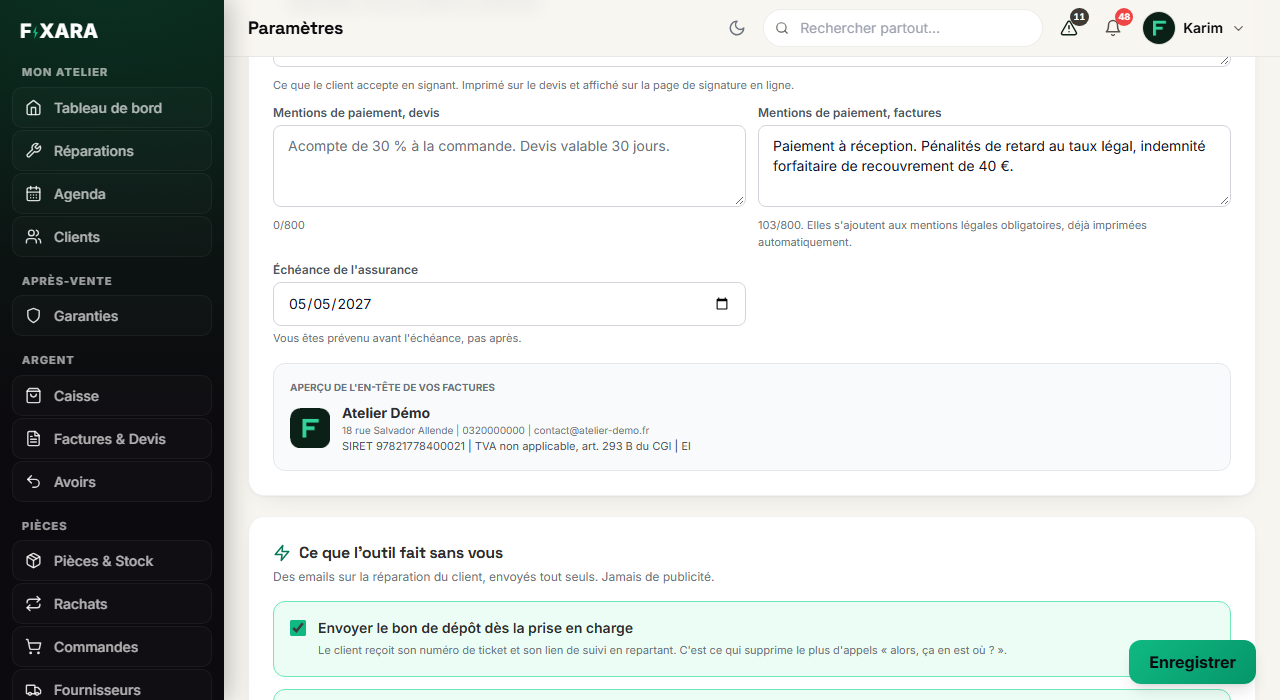
The payment mentions (one for quotes, one for invoices, 800 characters at most) are added on top of the mandatory legal mentions, which are already printed automatically: you don’t need to copy them. The expiry date of your insurance gets you a reminder before it runs out.
At the bottom of the block, the preview of your invoice header shows exactly what your customer will read: name, address, phone, e-mail, company number and VAT status. All there? Click Enregistrer (Save).
 12
121Your payment mentions: they are added to the legal mentions, they don’t replace them.
2The preview: this is the header your customer will read on their invoice.
Changing this information later changes everything, except the past
If you rename your shop in six months, the new name will appear everywhere: your website, your online shop, your e-mails, your future documents. Invoices already issued won’t change: their header is frozen on the day of issue, that’s the law.
What is still missing
The triangle at the top of the screen tells you what’s left to do
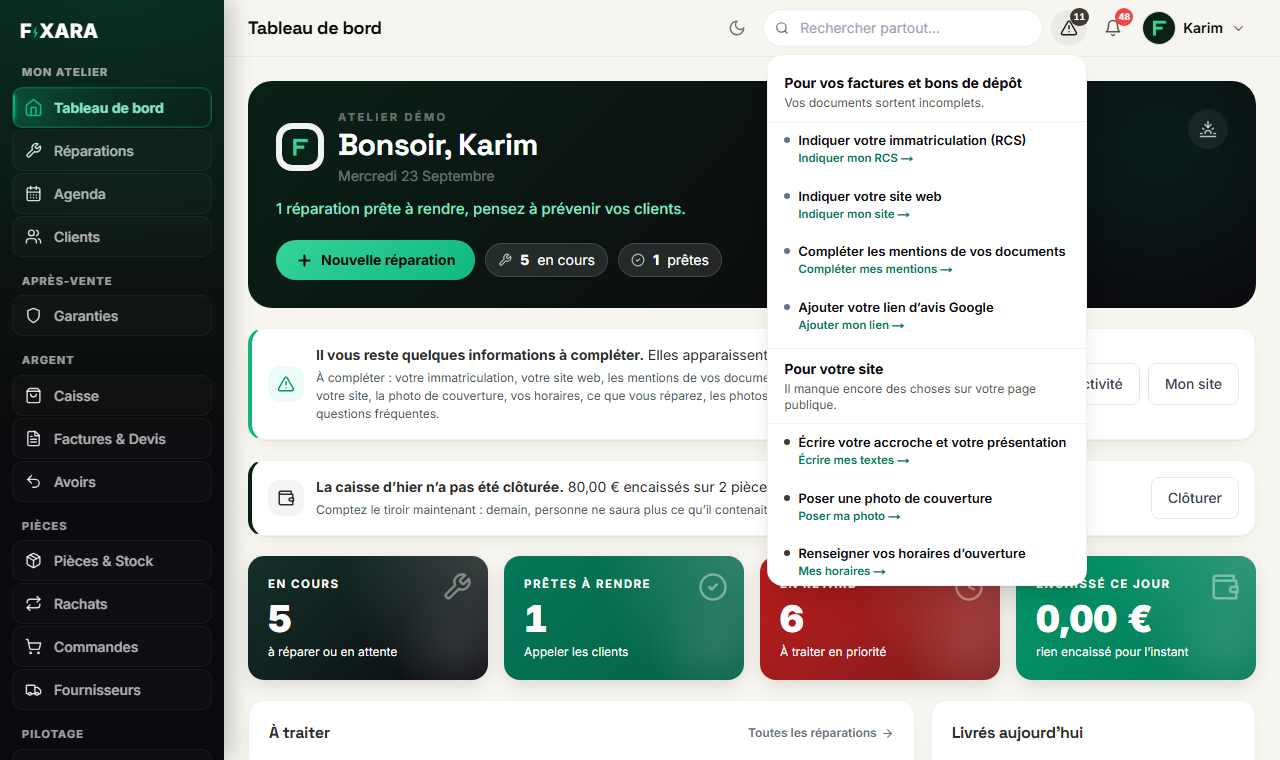
Next to the bell, the small triangle shows a number: that’s the information still missing. Click it: each item is named, with a link that takes you straight to the right field. The same reminder appears as a banner on your dashboard, with the Mon activité (My business) and Mon site (My website) buttons.
 123
1231The triangle and its counter: the number of items to complete.
2First what’s missing on your invoices and drop-off receipts, then what’s missing on your website.
3The same reminder, as a banner, on your dashboard.
Always start with the “Pour vos factures et bons de dépôt” (For your invoices and drop-off receipts) part: these are gaps on documents you hand to your customers. The “Pour votre site” (For your website) part can wait.
You’re done when you see this
- The header preview, at the bottom of the Invoicing block, shows your name, your full address, your company number and the right VAT status.
- Your signature and your logo appear in their frames.
- The triangle at the top of the screen no longer shows anything under “Pour vos factures et bons de dépôt”.