


Take payment, invoice, send: one single window
Move the ticket to “Delivered” and everything follows in the same place. What happens, and what cannot be undone.
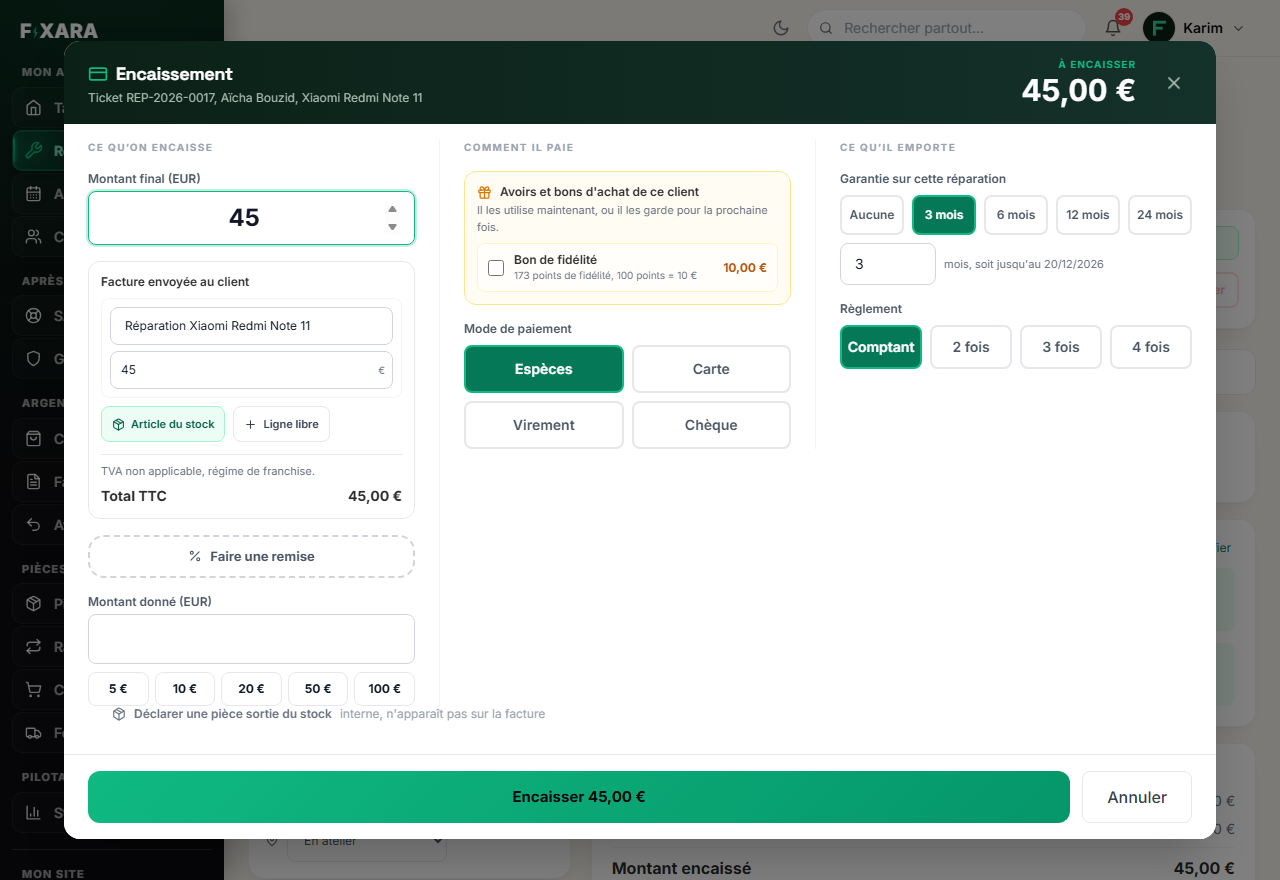
Three ways to open the same window: the Livrer (Deliver) button on a Ready card on the board, the Delivered status, or the Encaisser (Take payment) button on the ticket page. Nothing is saved until you click the big green button at the bottom: you can open it to check, then Annuler (Cancel).
The window fits on a single screen, without scrolling: three columns (what you invoice, how they pay, what they take away), and the amount to collect in large print, top right. At the counter, with the customer in front of you, scrolling back to reread an amount is the surest way to confirm without having read it.
 123456789
1What the customer pays now. It follows the discount, the credit notes and the number of instalments.
2The invoice, line by line: word for word what the customer will receive.
3Add an item sold with the repair: it leaves the stock.
4A discount, within the limit set in your settings.
5The customer’s credit notes, vouchers and points, to tick in front of them.
6The payment method.
7The warranty for this repair: it is printed on the invoice.
8In full, or in 2, 3 or 4 instalments.
9The button repeats the amount: you don’t confirm without reading it.
Column by column
What you invoice
The final amount is already filled in with the announced price: correct it if the work has changed. Just below, the invoice sent to the customer: the description of the repair, its price, and the total. You can add:
- an
Article du stock(Stock item) sold with the repair (a tempered glass, a case): it leaves the stock and is added as a line on the invoice; - a
Ligne libre(Free line), for example a part at a different VAT rate from your labour.
At the very bottom, Déclarer une pièce sortie du stock (Declare a part taken from stock) is used to deduct the part you fitted in the device: it leaves the stock, but does not appear on the invoice.
How they pay
Faire une remise (Apply a discount) applies a discount, within the limit you set in your settings for your team. Type the amount given (or click 5, 10, 20, 50, 100 €) and the change to give back is displayed.
If the customer has a credit note, a voucher or loyalty points, they appear here, to tick one by one in front of them. Nothing is applied automatically: it is their money, they decide whether to use it or keep it for another time.
What they take away
Choose the payment method: cash, card, bank transfer or cheque. Then the warranty: none, 3, 6, 12 or 24 months, or a number of months entered by hand. It is set here, when you know what you have done, and it is printed on the invoice.
Finally the payment terms: Comptant (In full), or 2 fois, 3 fois, 4 fois (2, 3, 4 instalments). In instalments, the first payment is collected now and the following ones fall due month by month.
A customer who cannot pay everything no longer leaves on a verbal promise: their payment plan is printed on their invoice, and the payments are tracked in the Paiements échelonnés (Instalment payments) tab of Invoices & Quotes.
Reread before confirming: an issued invoice can no longer be changed
The green button repeats the amount (“Encaisser 89,00 €”). On click, the invoice is issued and numbered: the law then forbids changing it. To correct it, you have to go through a credit note. That is why the invoice is shown during checkout, not after.
Nothing to pay? Take payment at 0 €
A free diagnosis, a return under warranty, a credit note that covers everything: set the amount to 0. No payment method is asked for, the ticket moves to Delivered and no invoice is issued.
After taking payment
The invoice is always issued automatically, that is the law. But it is only sent if you decide so: at the end of checkout, a window offers Envoyer la facture par mail (Send the invoice by email) and Imprimer la facture (Print the invoice). If you have entered your Google review link in your settings, its QR code is shown in large print at the same moment: turn the screen towards your customer, they scan it while they still have their repaired device in hand.
A credit note is not a discount
Creating a credit note issues a credit note invoice: your revenue goes down at that moment, backed by a numbered document. When the customer uses it, their new invoice stays at full price and the credit note appears on it as a means of payment. Vouchers and loyalty, on the other hand, remain negative lines on the invoice.
You’re done when you see this
- The ticket has left the board: it is Delivered.
- The invoice appears in Invoices & Quotes, with the status Paid.
- The amount is counted in “Encaissé ce jour” (Collected today) on your dashboard.