


Make a quote or an invoice, and send it
Where everything is, how to make a quote your customer signs online, and the exact moment an invoice becomes final.
Most of your invoices are created automatically, the moment you take payment for a repair. Invoices & Quotes is for everything else: finding an invoice, making a quote, invoicing by hand, following payments made in instalments.
Find your way around the screen
At the top, Mes branchements (My connections) unfolds: your SumUp terminal, e-invoicing and Pennylane (these last two are France only). Below, three tabs:
- Mes factures (My invoices): your invoices, credit notes and counter sales, then your quotes with the
Factures/Devis(Invoices / Quotes) switch; - Paiements échelonnés (Instalment payments): invoices paid in several instalments, and their due dates;
- Attestations (Certificates): “beyond economic repair” certificates for insurers.
Each line shows its number, the customer, the total, the payment status (Payée, À régler, Brouillon, Annulée, i.e. Paid, To be paid, Draft, Cancelled, with the payment method underneath) and its actions: preview, PDF download, send by e-mail, take payment, credit note.
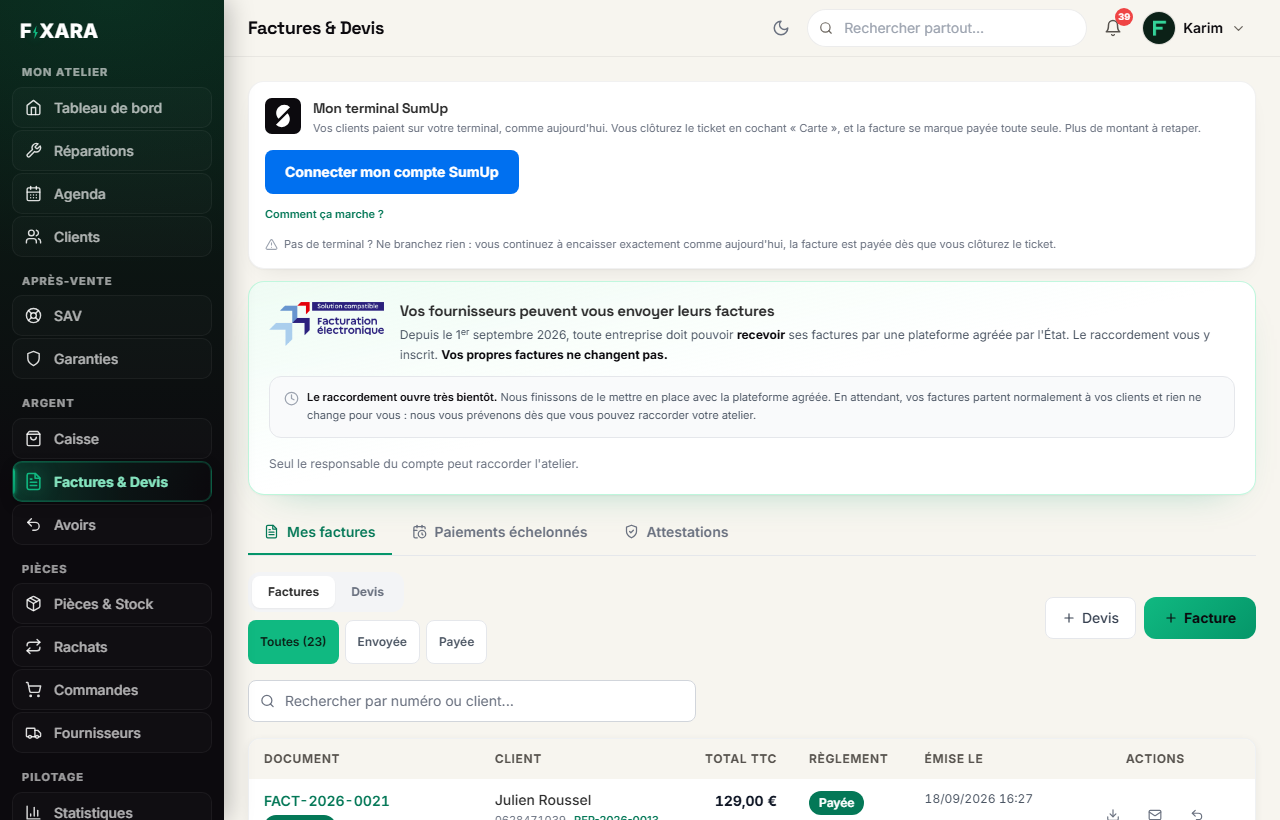 123456
1SumUp, e-invoicing and Pennylane, folded away here.
2Your invoices, instalment payments, certificates.
3Invoices or quotes.
4Create an invoice or a quote by hand.
5Payment status: Paid, To be paid, Draft, Cancelled.
6Cancel the whole invoice with a credit note.
A sale made at the till appears here with the label Vente de produit (Product sale) and a VTE-… number. An invoice created from a repair carries the label Réparation (Repair) and the ticket number.
Selling an accessory or a phone? Use the till, not an invoice
An invoice or a quote is a free-form document: a customer, some lines, and a ticket to link if there is one. For a counter sale, the Checkout is faster and takes the item out of stock. Haven’t entered your stock yet? The Rayon express (Express shelf) lets you tick your accessories and set your price: each one becomes a button at the till. The green banner in Nouvelle facture (New invoice) also leads there.
The quote, signed online by the customer
Create the quote
+ Devis (+ Quote), top right. Then:
- the customer: type their name, phone number or e-mail, and their record comes up;
- the device (brand, model, IMEI), the linked ticket if there is one, and the warranty in months;
- the lines: type an item from your stock or free text, the quantity and the price.
Saisir en : HT / TTC(Enter in: excl. / incl. VAT) chooses how you type prices;+ Ligne(+ Line) adds one; - a discount and internal notes, if needed.
Then Créer le devis (Create the quote).
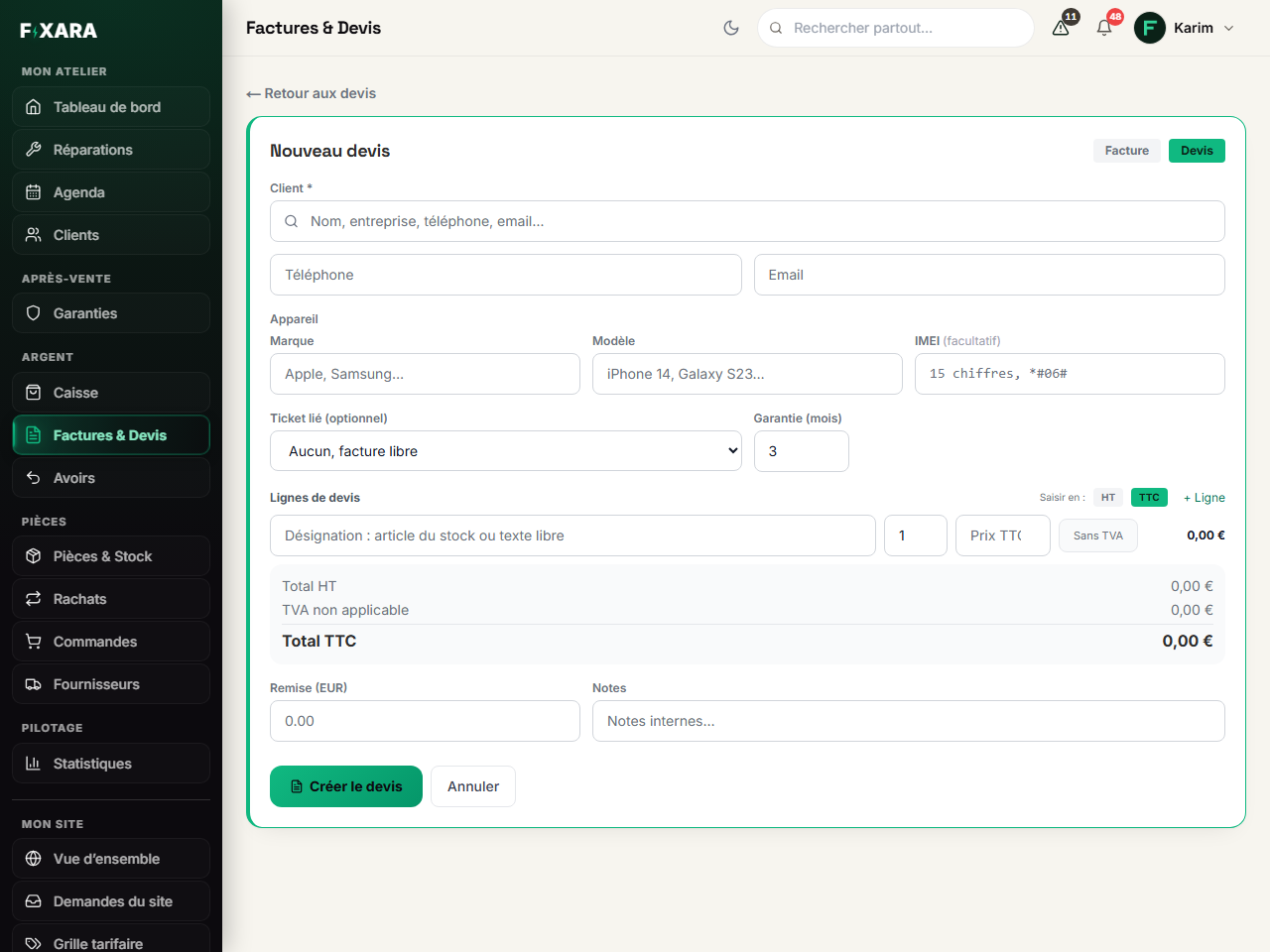 12345
123451The customer, searched in your records.
2The device concerned: it is printed on the quote.
3A stock item or free text, per line.
4You type prices excluding or including VAT, as you prefer.
5The quote gets a DEV-… number, separate from invoice numbers.
Send it for signature
In the list of quotes, the envelope icon Envoyer le devis à signer (Send the quote for signature) opens a small window: add a note for your customer if you like (“As agreed on the phone…”), it appears in the e-mail just below the greeting. Then Envoyer (Send).
The customer must have an e-mail address on their record: if not, the window tells you, and you add it first.
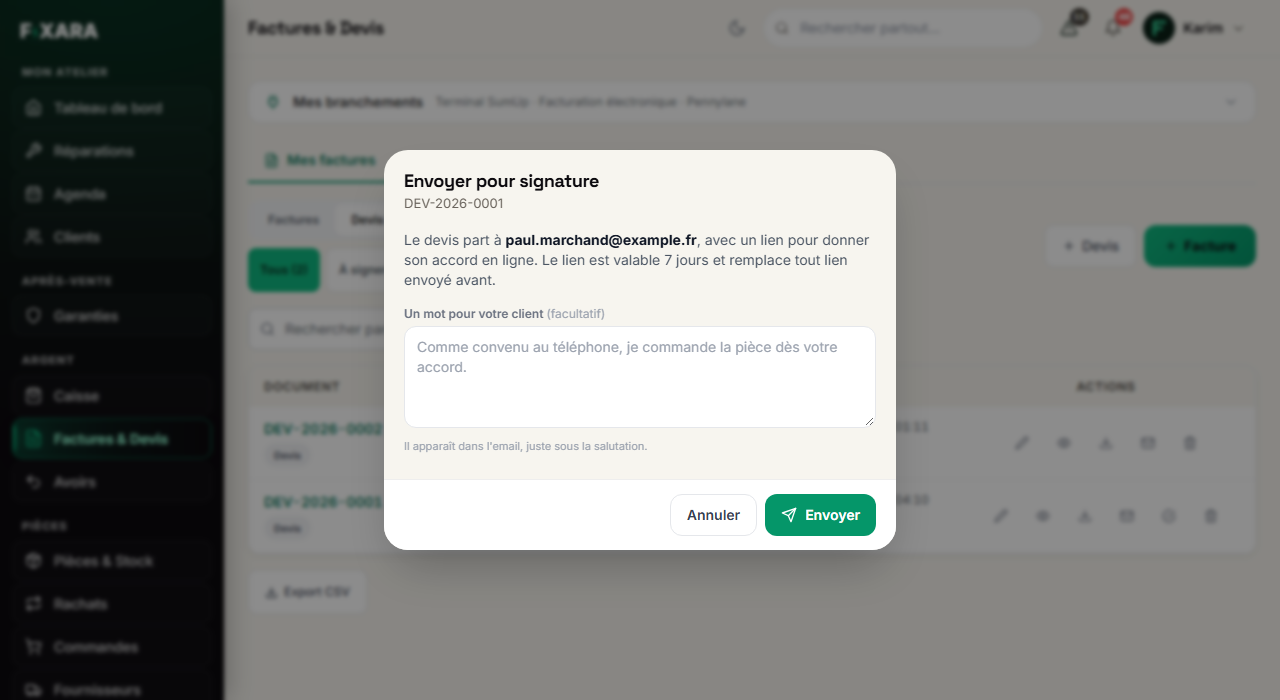 12
121Optional: it appears in the e-mail, below the greeting.
2The customer receives a link to sign.
What your customer sees
They open the link: a page in your colours, with the total amount, the line details, your quote terms and your contact details. They type their first and last name, then click Je donne mon accord (I agree). No account to create, no PDF to print and send back scanned.
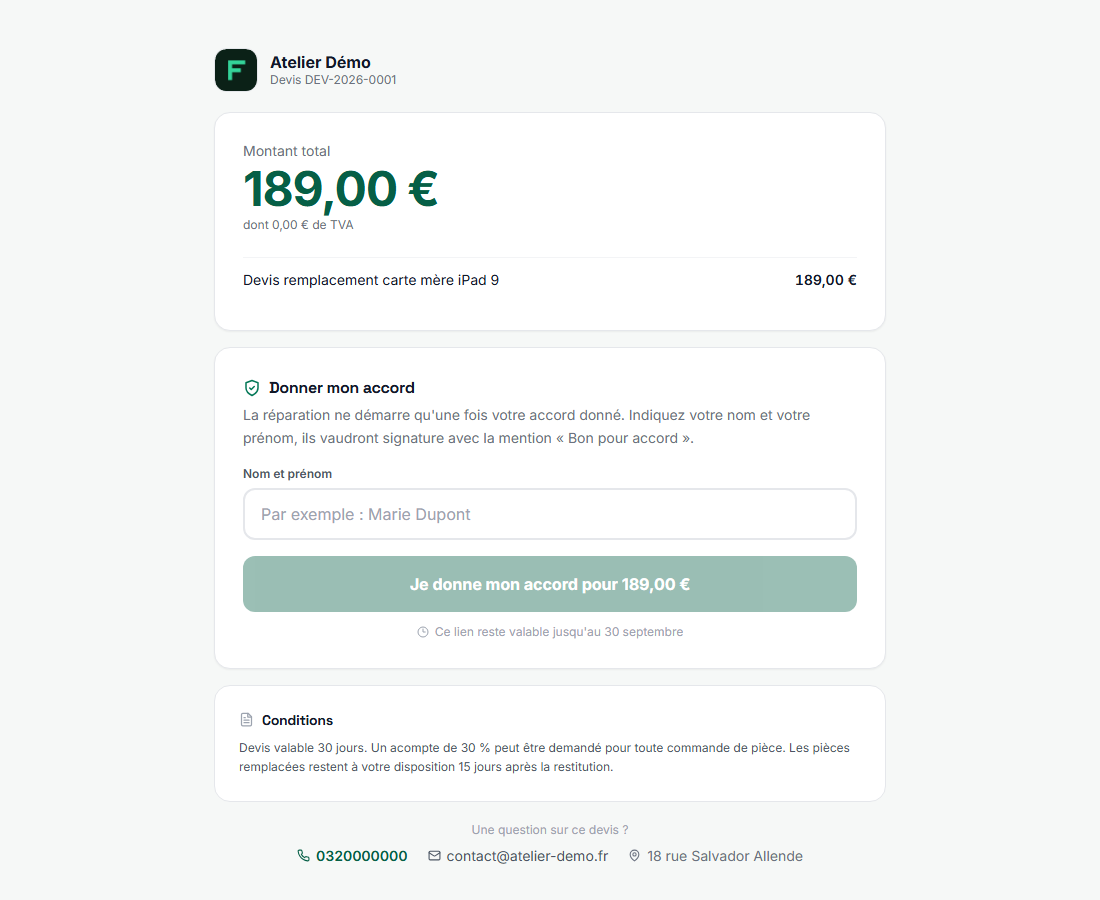 12345
123451The total amount, in large type.
2Their first and last name act as the signature, “Approved”.
3The button repeats the amount accepted.
4The link is valid for seven days.
5Your quote terms, entered in your settings.
What this signature is worth
We keep the name typed, the time and the IP address, under the wording “Bon pour accord” (Approved). Each sending creates a new link that cancels the previous one: an old link cannot be used to sign a price that has changed since. A signed quote can no longer be edited; as long as nobody has signed, it remains editable, even after sending.
You are notified in the app
When the customer signs, you get a line in your bell, and a notification on your phone if you have allowed it. The quote moves into the Signé (Signed) filter of the list.
Track your quotes, and turn them into invoices
The À signer (To sign) and Signé (Signed) filters sort your quotes. On each line: edit (as long as it is not signed), preview, PDF, send for signature, and Valider le devis (Approve the quote), which turns it into an invoice after confirmation.
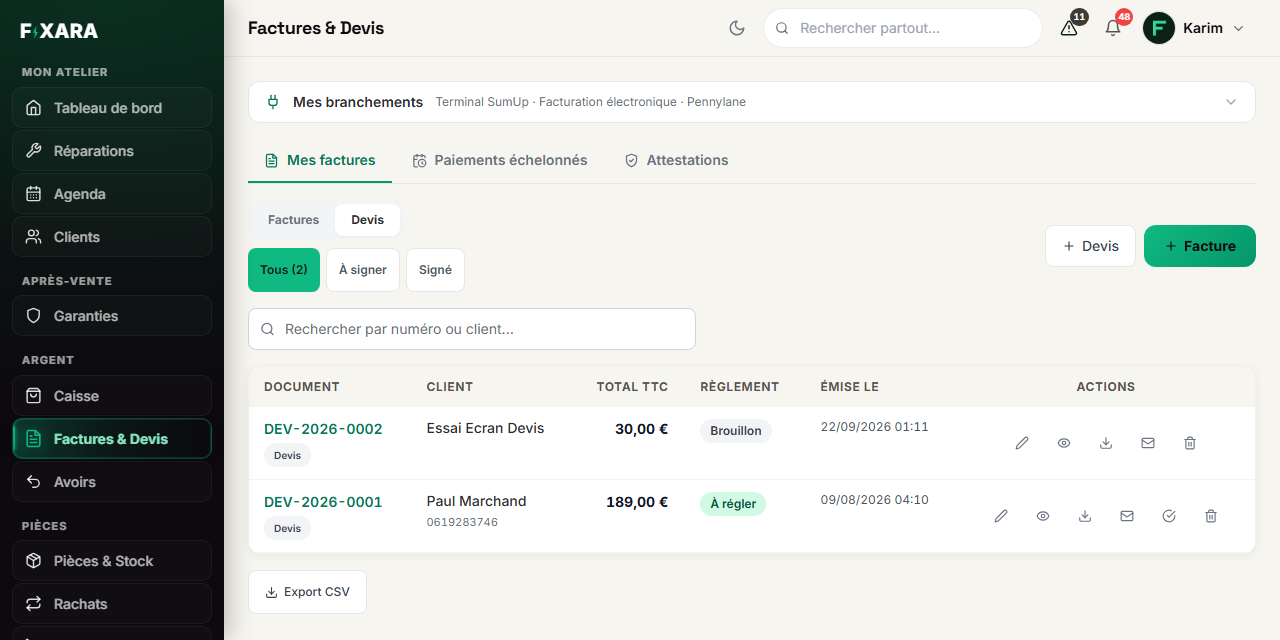 123
1231What is waiting for the customer’s signature.
2Send, or resend, the quote for signature.
3Turn the quote into an invoice.
Invoices
Send an invoice to the customer
An invoice is never sent automatically: the envelope icon in the list (or Envoyer la facture par mail (Send the invoice by e-mail) at the end of a payment) sends it, with the PDF attached. It is only marked “sent” once the e-mail has actually gone.
An issued invoice can no longer be edited, or deleted
That is the law. An invoice gets its number as soon as it is created, even as a draft, and the sequence must stay continuous. To correct an issued invoice, you issue a credit note (see “Credit notes, vouchers and loyalty”). To check a layout, use a quote.
Payments in instalments
A customer paying in 2, 3 or 4 instalments: this is decided in the ticket’s payment window. Tracking is in the Paiements échelonnés (Instalment payments) tab: what is left to collect, what is overdue, and each instalment to collect on its due date. On the day an instalment falls due, your customer receives a reminder by e-mail, and you are told what is overdue.
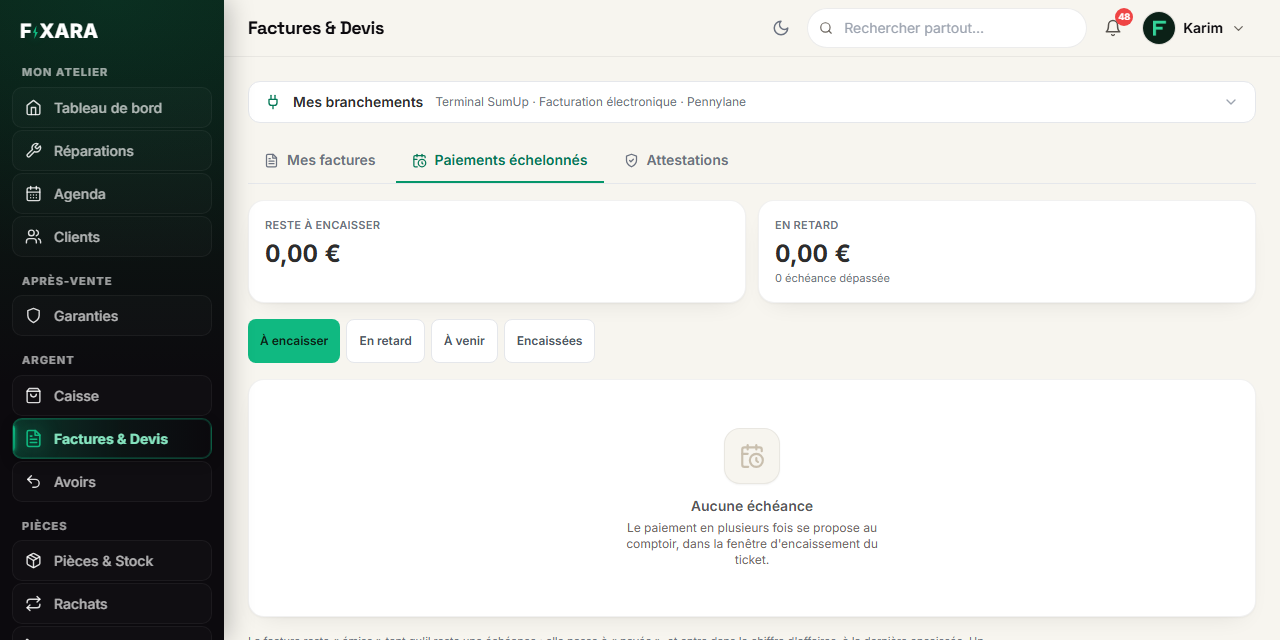 12
121Everything paid in several instalments.
2To collect, overdue, upcoming, collected.
The invoice stays À régler (To be paid) as long as an instalment remains: it is the last instalment collected that switches it to Paid.
You’re done when you see this
- The PDF attached to the e-mail carries your letterhead, your legal notices and your terms.
- A signed quote moves into the Signé (Signed) filter.
- Your invoice numbers follow on, with no gaps.