


Step 3 of 4
Your parts, your prices, your price list
What you have in your drawers and what you charge. It feeds the till, the invoices and your website.
Two different things, and it’s best to tell them apart right away:
- stock: what you have in your drawers, with its purchase price and selling price. It’s used by the till and on invoices;
- the price list: what a repair costs, by model and by fault. It’s used at check-in and on your website.
Stock
Open Parts & Inventory
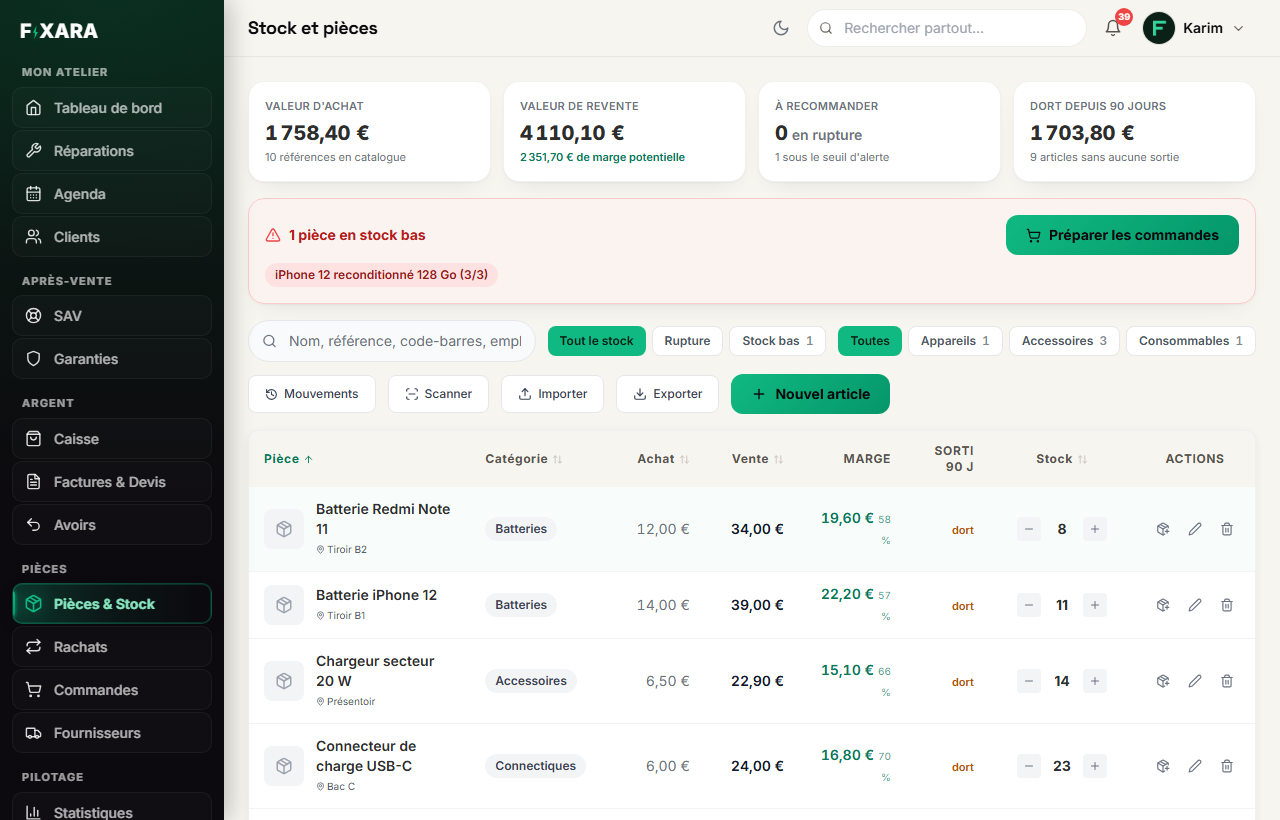
In the menu, Parts & Inventory. At the top, four figures: what your stock is worth at cost, what it’s worth at resale, what needs reordering, and what has been sitting for 90 days. Below, the filters (out of stock, low stock, categories) and the buttons.
 123
1231What is out of stock or below the alert threshold.
2Importer / Exporter (Import / Export): your catalogue goes in and comes out whenever you like.
3Add an item by hand.
Already have a file? Import it
Importer (Import) reads .xlsx and .csv files, just as they come out of your old software or your spreadsheet. The columns are recognised automatically, and you see the items as they will be saved before anything is written. If a column is wrongly recognised, Les colonnes ne sont pas les bonnes ? (Columns not right?) lets you fix it. Prefer to start from scratch? Télécharger le modèle (Download the template) gives you the file to fill in.
Two lines for the same item have their quantities added together, and an item already in your stock is never overwritten. You can re-run an import without creating duplicates.
Or add an item by hand
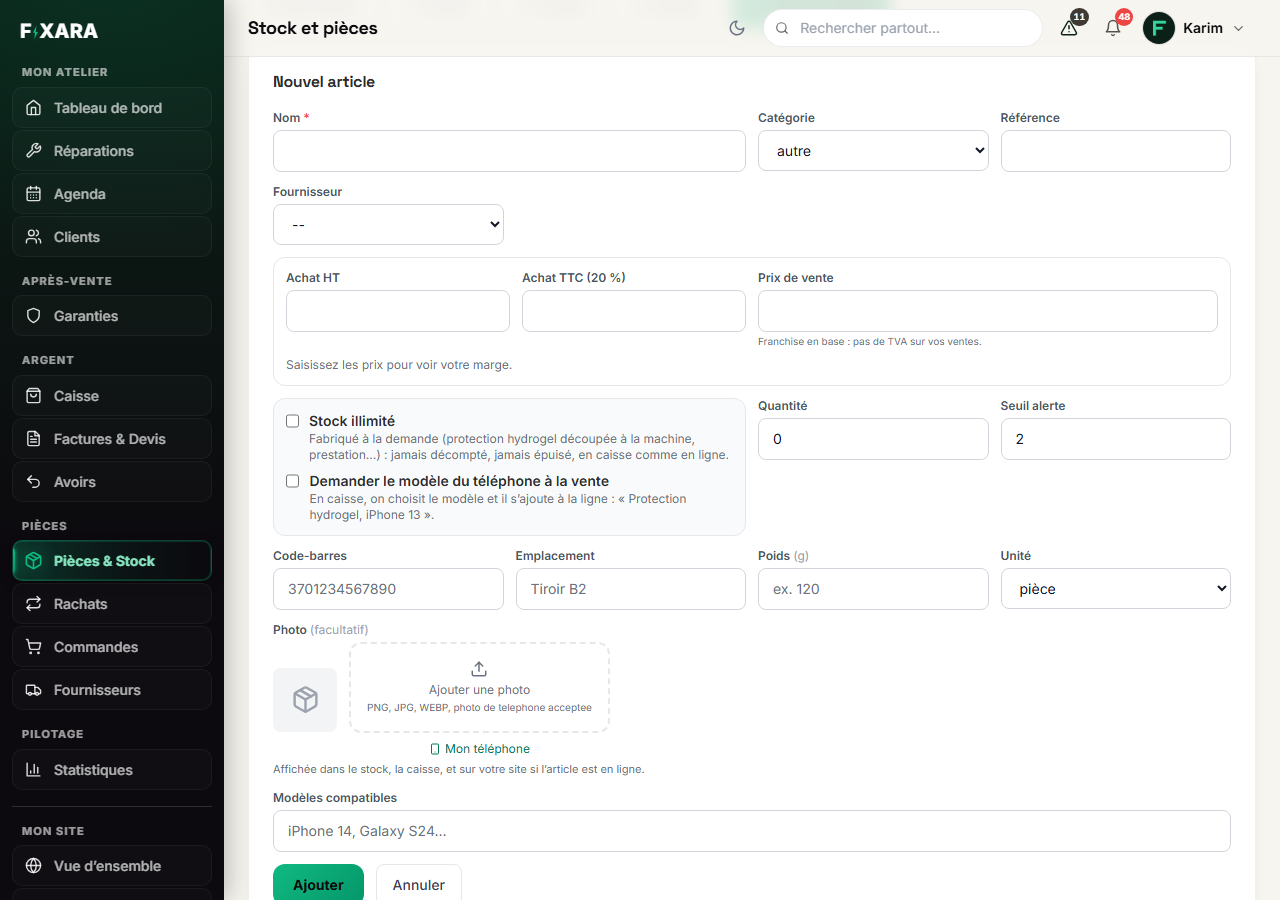
Nouvel article (New item), then:
- Name (required), category, reference and supplier;
- the prices: purchase price excl. or incl. VAT (one calculates the other), and the selling price. The margin appears live as soon as both prices are entered;
- Quantity and alert threshold: below this threshold, the item goes to “low stock”;
- Barcode (to scan it at the till), location (“Drawer B2”), weight (for online shop shipping), photo and compatible models.
Then Ajouter (Add).
 1234
12341The name, as it will appear at the till and on the invoice.
2The prices: excl. or incl. VAT, one calculates the other, and the margin is shown.
3For things that never run out, like hydrogel cut on demand.
4Below this threshold, the item goes to “low stock”.
The selling price is saved excluding VAT
The invoice line takes this price excl. VAT and adds the VAT on top. You can enter it incl. VAT on the item page: the excl. VAT price is calculated automatically, to four decimal places, so the till lands on your displayed price to the cent. If you are VAT-exempt, there is only one selling price, without VAT.
No time to enter everything? Start with the express shelf
You can sell before entering your stock. In the Checkout, Rayon express (Express shelf): tick the accessories you sell (case, tempered glass, cables, chargers, earphones…) and set your price. They appear in Parts & Inventory as unlimited-stock items: you can switch them to tracked quantities later. See Selling at the counter.
Items that never run out
A hydrogel screen protector is cut on demand: tick Stock illimité (Unlimited stock). It will never be deducted, never out of stock, never trigger an alert, and every sale is still recorded so you know how many you sell. Also tick Demander le modèle du téléphone à la vente (Ask for the phone model when selling): at the till, you choose the model and the line becomes “Hydrogel protector, iPhone 13”. An item whose name contains “hydrogel” already has both boxes ticked.
When a box arrives
On each item, Entrée d’un lot (Stock in a batch): the quantity received, the unit price (excl. or incl. VAT) and the invoice or delivery note number. The purchase price becomes the average cost of what you have in your drawers. Your margins stay accurate even when your supplier’s price changes.
The price list
Open the price list and choose a device, then a brand
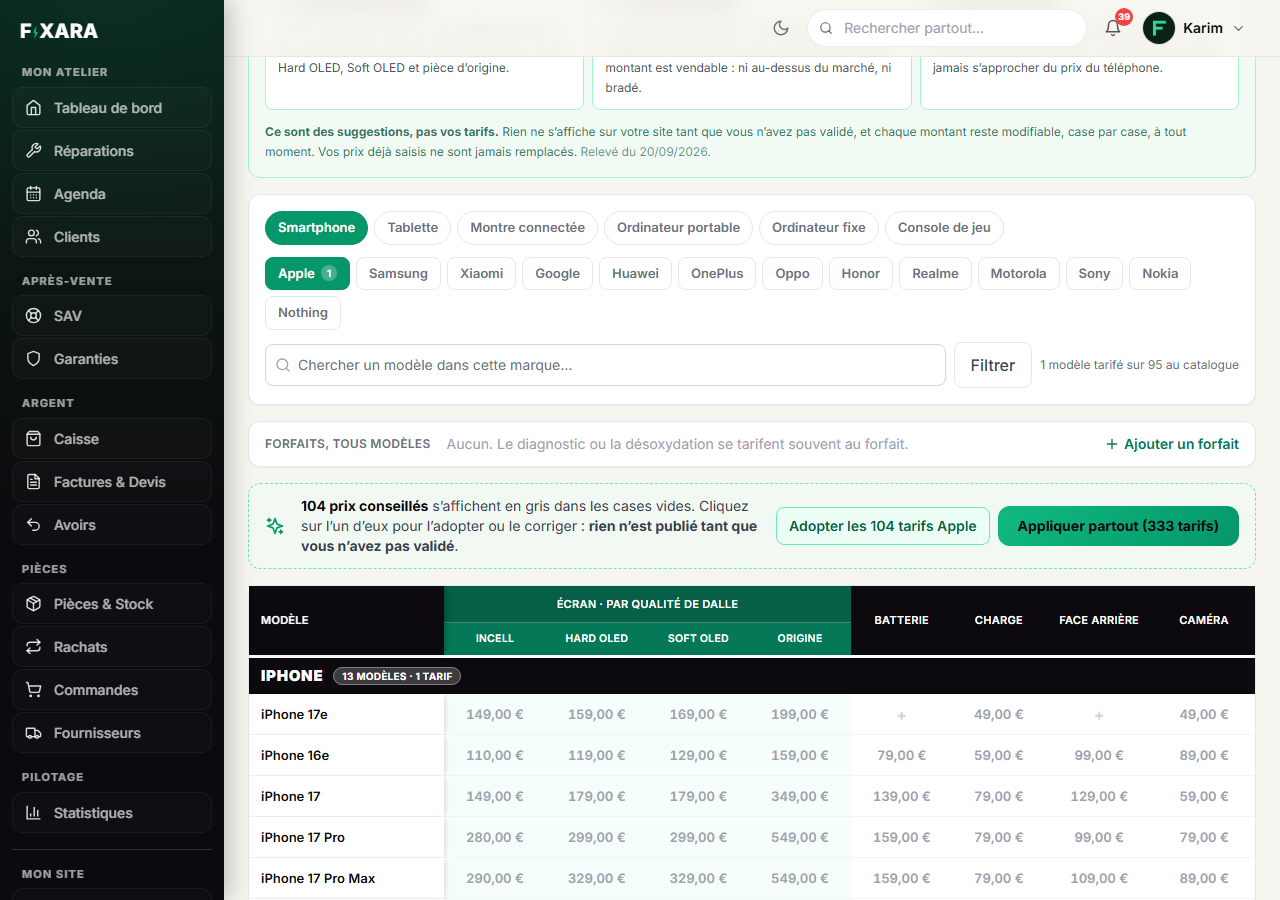
In the My website menu, Price list. One row per model, one column per service: screen, battery, charging, back glass, camera… For the screen, one column per panel quality (Incell, Hard OLED, Soft OLED, Original), because the price can triple from one to the next.
Choose the device (Smartphone, Tablet…), then the brand. Only one brand is shown at a time: otherwise, you can’t find anything. The search above the table finds a model within that brand.
 1234
12341A device, then a brand: one at a time.
2Adopt all the suggested prices for this brand at once.
3Or all of those for the repairs you do, across all brands.
4A grey price is a suggestion: one click opens it, already filled in, and you confirm it.
Set your prices
Click a cell: type the amount incl. VAT, then Enter. The price turns from grey to black: it’s yours.
- A grey cell is a suggested price, calculated from the real cost of the parts and the age of the device. Until you confirm it, it isn’t shown anywhere;
- a cell marked + is empty: there is no suggestion, because the part isn’t sold by the wholesaler. Enter your price if you do the repair;
- clearing a cell deletes your price, after confirmation: it also disappears from your website.
To go fast: Adopter les N tarifs <marque> (Adopt the N prices for <brand>) confirms all the suggested prices for the brand shown in one go, and Appliquer partout (Apply everywhere) those for all the repairs you have said you do. Neither overwrites a price you have already entered. You then correct what doesn’t suit you, cell by cell.
Add your fixed prices and your own repairs
Two banners above the table:
- Forfaits, tous modèles (Fixed prices, all models) →
Ajouter un forfait(Add a fixed price): a price that applies to all devices, such as a diagnosis or a liquid-damage clean; - Mes réparations à moi (My own repairs) →
Ajouter une réparation(Add a repair): a repair that isn’t in the columns (“Face ID flex cable”, “Joystick”), or a device missing from the catalogue. You name it, choose the model or a whole device family, and set your price.
The price list is part of the Workshop + Website plan
During your fourteen-day trial, everything is open. After that, the price list, the website and website requests require the Atelier + Site (Workshop + Website) plan (€49 excl. VAT per month). The prices you have set stay saved if you choose the Atelier (Workshop) plan, and come back as soon as you switch to the Workshop + Website plan.
You’re done when you see this
- A price you have entered appears in black in its cell, no longer in grey.
- The check-in suggests this price at the Summary step, for this model and this fault.
- The same price appears on your website’s quote page (
Ma page publique(My public page) button, at the top of the price list). - An item added to stock shows up in the Checkout when you type its name or scan its barcode.