


Give someone on your team an account
One account per person: every action has an author, you choose what they see, and you cut off access in one click.
Before you start
- The Atelier + Site plan: the Atelier plan includes only one account.
Open Settings, “Équipe” (Team) tab
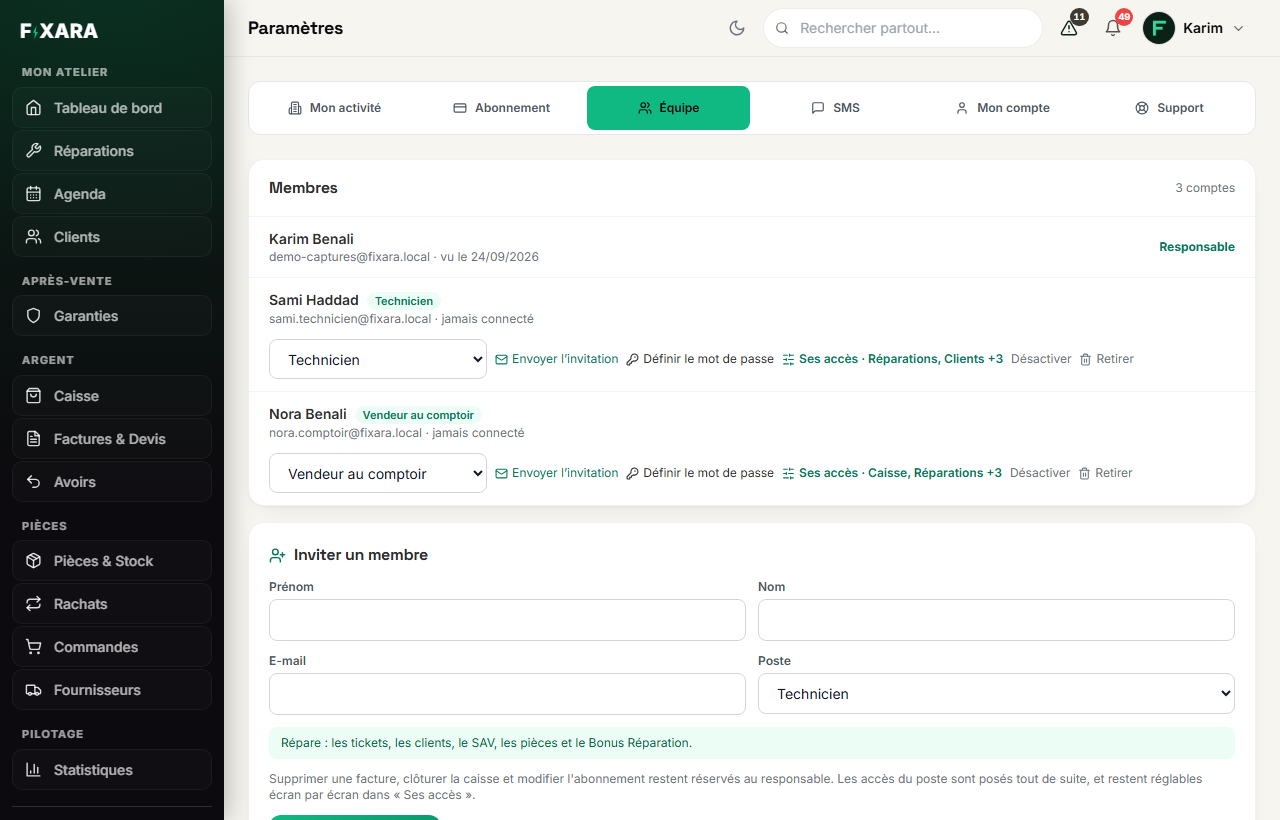
Only the shop owner sees this tab. At the top, the members: each with their role, their last sign-in and their actions. At the bottom, the form to invite a member, and Voir le journal (View the log) to see who did what.
 12345
123451The “Équipe” (Team) tab, reserved for the owner.
2Each person’s position: it sets their role and their access in one go.
3What this person sees in the software.
4Cut off their access, without erasing anything.
5Invite a member: they receive a link to choose their password.
Invite the person
Their first name, last name, email and position, then Envoyer l’invitation (Send the invitation). The position sets their role, their job title and their access in one go (see the table below). Sur mesure (Custom) keeps the old way: you choose Employee or Manager, then tick their access. They receive a link to choose their password: you never send them one, and you don’t know any. If the email got lost, Envoyer l’invitation on their line sends it again; Définir le mot de passe (Set the password) lets you set it yourself, in front of them.
| Position | What they see by default |
|---|---|
| Technicien (Technician) | Repairs, customers, after-sales and warranties, parts and stock, Fonds Réparation (France only). |
| Vendeur au comptoir (Counter salesperson) | Checkout, repair drop-off, customers, after-sales, buybacks. |
| Responsable de boutique (Store manager) | Everything, with the Manager role: prices, catalogue, suppliers. |
| Comptable (Accountant) | Invoices, quotes and credit notes, reports. |
| Boutique en ligne (Online shop) | Online shop, parts and stock, orders and suppliers. |
A position is a starting point
Everything can still be adjusted by hand: Ses accès (Their access) ticks and unticks screen by screen, as before. Changing a member’s position, in the menu on their line, resets their role, job title and access in one go. Their position is shown next to their name.
| Role | What they can do |
|---|---|
| Responsable (Owner) | Everything, including closing the till, credit notes, prices, deleting an invoice or a customer, and the team. |
| Manager | Day-to-day work, plus prices, the catalogue, suppliers and orders. |
| Employé (Employee) | Day-to-day work: tickets, customers, sales. They use a voucher at the counter, but do not issue credit notes and do not change prices. |
Choose what each person sees
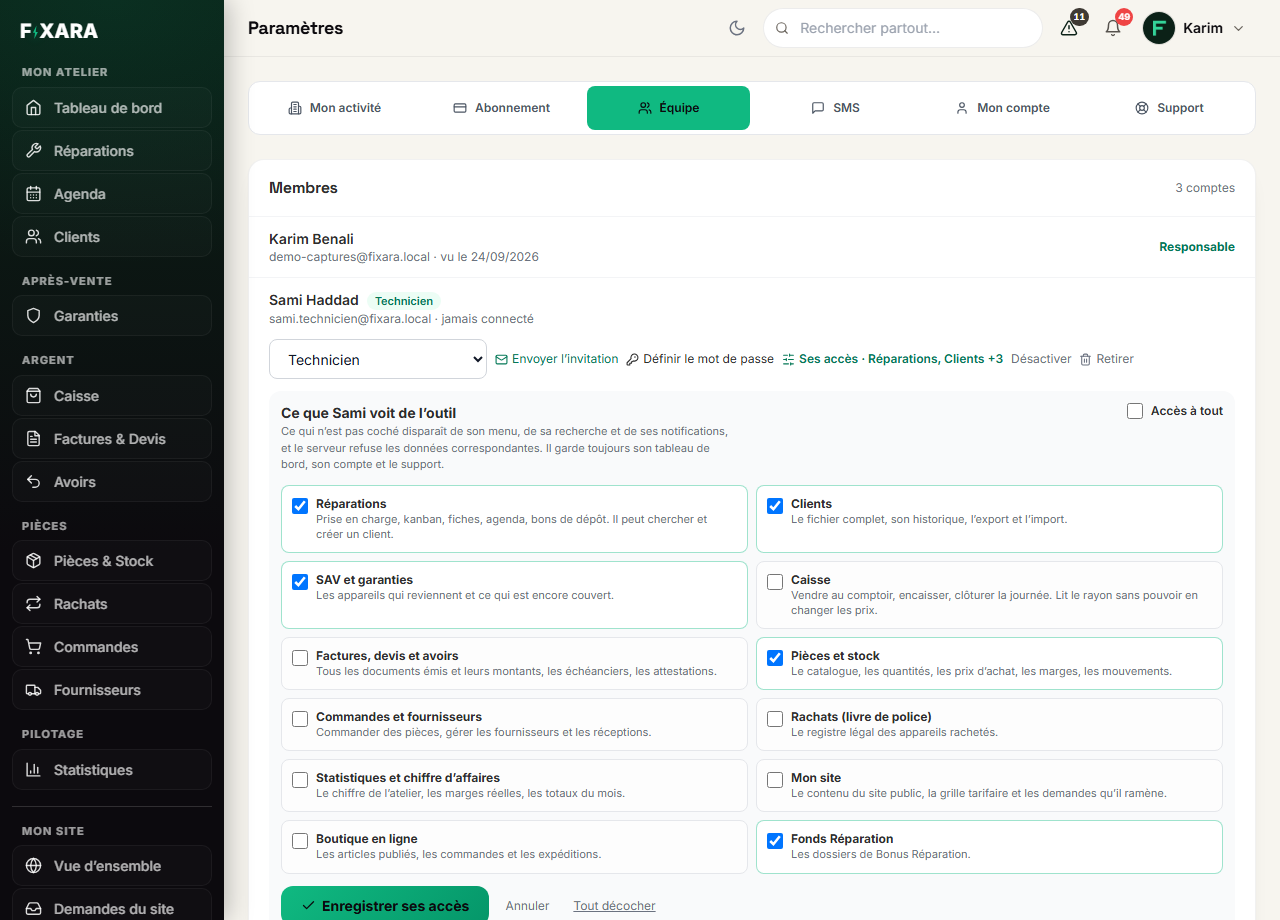
Ses accès (Their access), on a member’s line, opens twelve boxes: repairs, customers, after-sales and warranties, checkout, invoices, parts and stock, orders and suppliers, buybacks, reports, your website, the online shop, the Fonds Réparation (France only). Untick what they don’t need to see, then Enregistrer ses accès (Save their access).
What is not ticked disappears from their menu, their search and their notifications, and the server refuses the corresponding data. They always keep their dashboard, their account and support. It applies from their next action: they are not signed out, and nothing they have already entered is lost.
 1234
12341Everything open, by default.
2One box per area: what is unticked disappears from their menu.
3Applied from their next action, without signing them out.
4Remove everything at once, then tick again what is needed.
A bench technician often only needs Repairs and Parts and stock. A salesperson, Checkout and Customers. The owner always sees everything.
These limits are enforced by the server
Hiding a button protects nothing: rights are checked on the server for every action. An employee who tried to issue a credit note, or to open an area closed to them, is refused, even by typing the address by hand.
Removing someone does not erase them
Désactiver (Deactivate) cuts off access immediately. Retirer (Remove) takes them out of the team; if the person has a history (tickets, payments), their account is deactivated rather than deleted: the author of each document remains known. Losing the author of an invoice to make a team line disappear would be a bad trade.