


Step 2 of 4
Your first repair, from the counter to the drop-off receipt
The task you’ll do ten times a day. Customer, device, fault, signature: two minutes.
The check-in is the form you fill in standing up, with a customer in front of you. It’s built for that: three steps (Client (Customer), Appareil & Panne (Device & Fault), Récap (Summary)), and everything that isn’t essential is folded away.
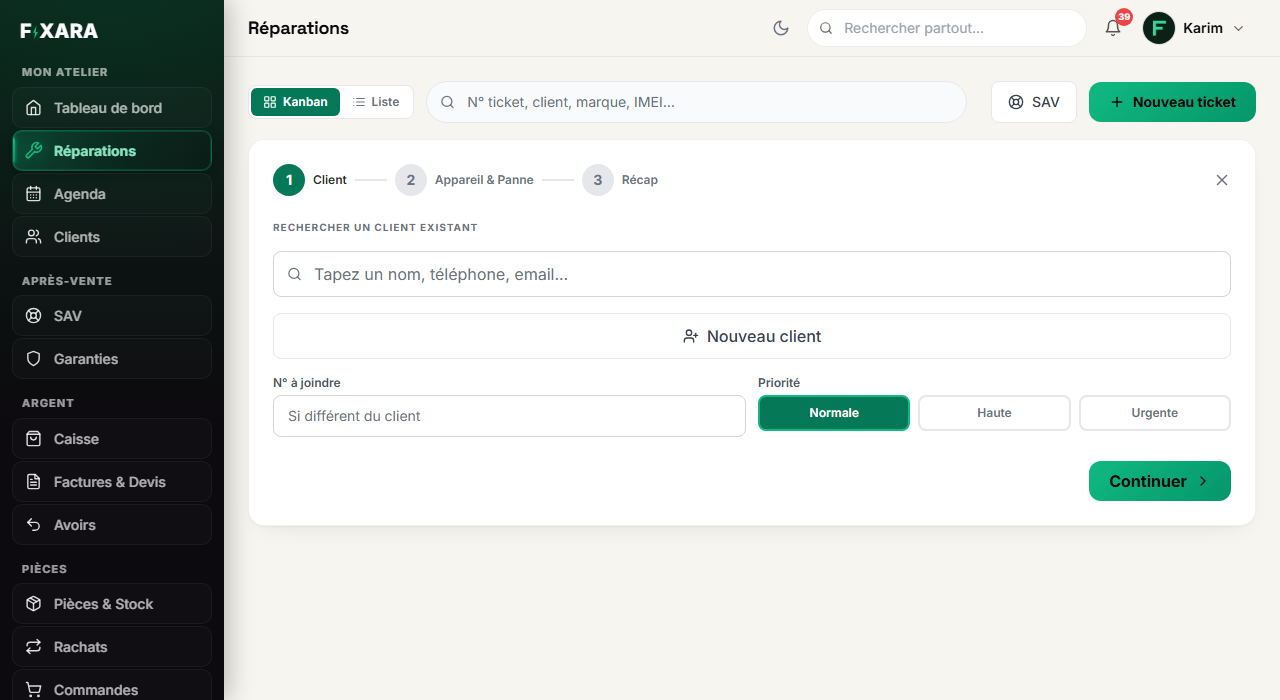
Open “Nouveau ticket” and find the customer
From Repairs, the Nouveau ticket (New ticket) button at the top right, or the Nouvelle réparation (New repair) button on your dashboard.
Type a name, a phone number or an e-mail: if the person has been before, their record comes up with the number of repairs already done. Click it. Otherwise, Nouveau client (New customer) opens the record to create without leaving the check-in.
 1234
12341A name, a phone number or an e-mail.
2A known customer: one click, and everything is filled in.
3Not a customer yet? Their record is created here.
4Another number to call for this repair? That’s the one that will receive the text message.
Also choose the priority (Normale, Haute, Urgente: normal, high, urgent): it shows on the ticket card in your repairs board. Then Continuer (Continue).
The device first, then the fault
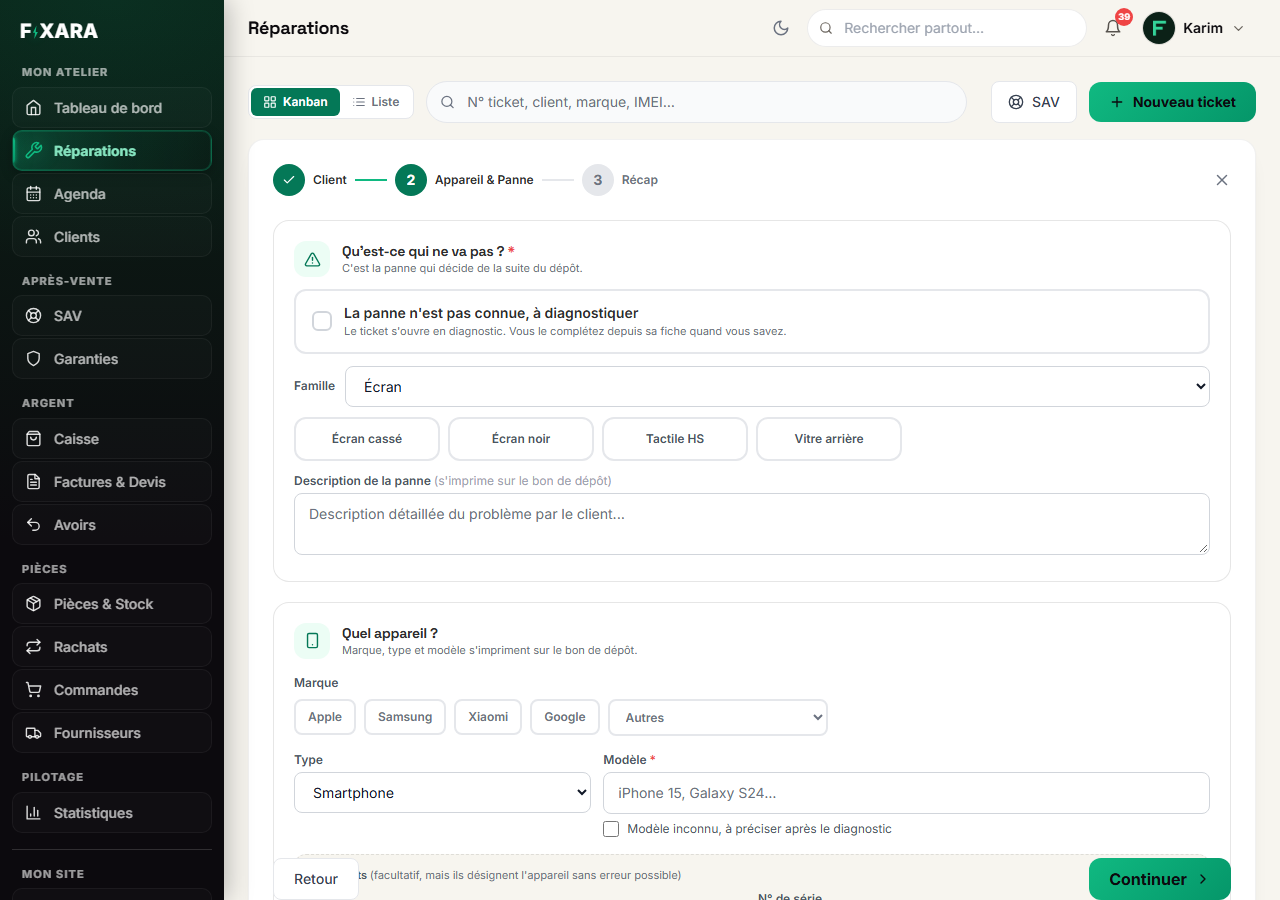
The device: one click on the brand (Apple, Samsung, Xiaomi, Google; the others are in the Autres (Others) menu), then type the model: the list suggests that brand’s models, newest first. Don’t know yet? Tick Modèle inconnu, à préciser après le diagnostic (Unknown model, to be specified after diagnosis).
The fault: choose the category in the menu (screen, battery, charging…), then the fault. The description fills itself in and can still be edited: it’s what is printed on the drop-off receipt. If you don’t know yet, tick La panne n’est pas connue, à diagnostiquer (Fault not known, to be diagnosed): the ticket opens in diagnosis and you complete it later.
 12345
123451The brand: the four most common as buttons, all the others under “Autres”.
2The model, searched in the brand’s catalogue.
3The IMEI or serial number: optional, but it identifies the device with no possible mistake.
4Fault not known yet: the ticket goes into diagnosis.
5The fault category, then the fault itself.
The model field helps without imposing: what you type is what gets saved, even if no suggestion matches. “My daughter’s tablet” is perfectly fine.
Note the condition, accessories and passcodes
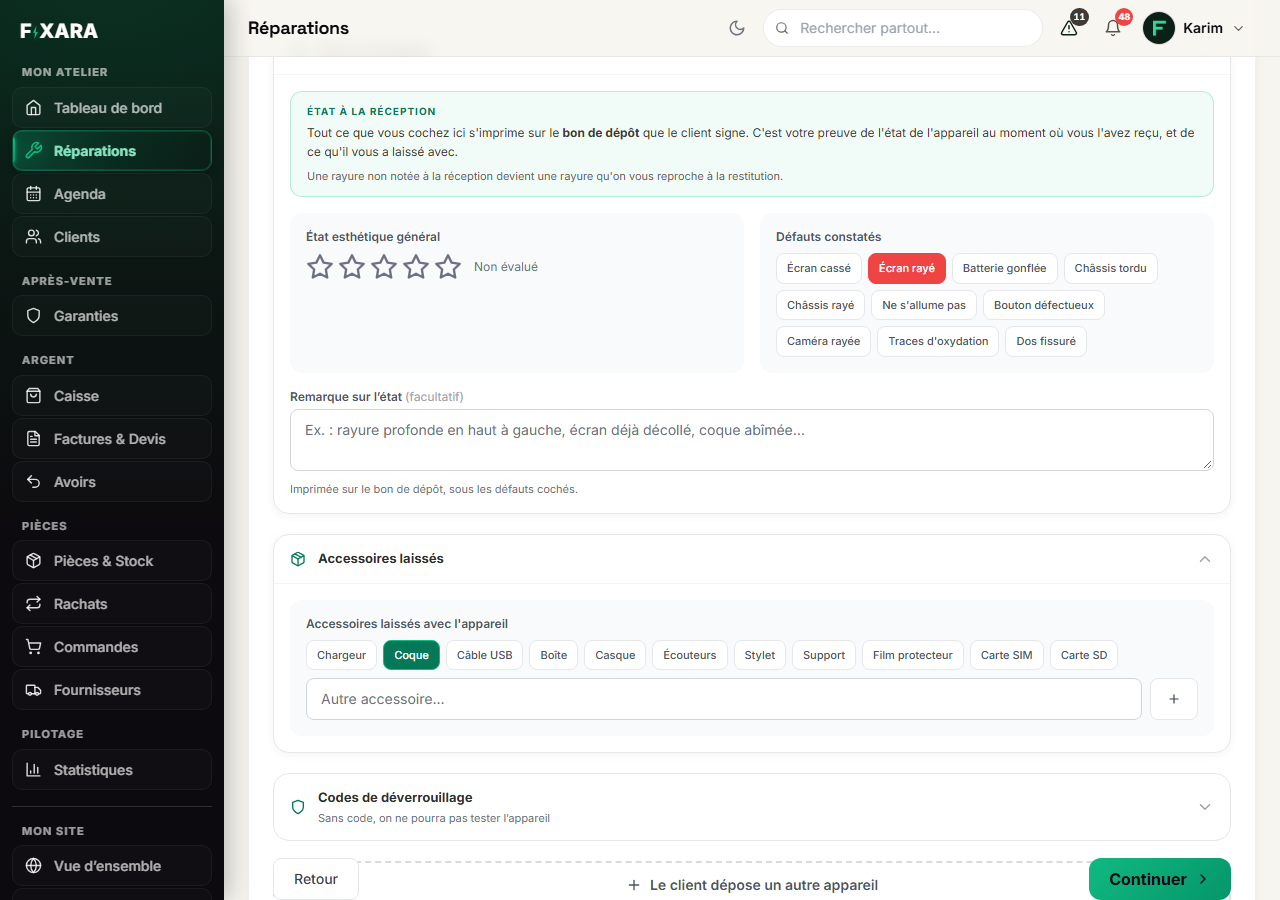
Three folded sections under the fault. They are optional, but everything you note there is printed on the drop-off receipt the customer signs:
- État à la réception (Condition on arrival): stars for the overall condition, visible defects in one click (scratched screen, bent frame, signs of corrosion…) and a free comment;
- Accessoires laissés (Accessories left): charger, case, SIM card, SD card… or an accessory you type yourself;
- Codes de déverrouillage (Unlock codes): the passcode or pattern. Without it, you won’t be able to test the device after the repair.
 1234
12341The overall condition, in stars.
2Existing defects, ticked in front of the customer.
3What they leave with the device.
4The unlock code, stored encrypted.
A scratch not noted on arrival becomes a scratch you get blamed for on return. Two clicks in front of the customer spare you the argument.
Two devices for the same customer?
At the bottom of the step, Le client dépose un autre appareil (The customer is leaving another device) adds a second device to the same check-in. Each one gets its own ticket, and the customer signs only once.
The summary: price, turnaround and signature
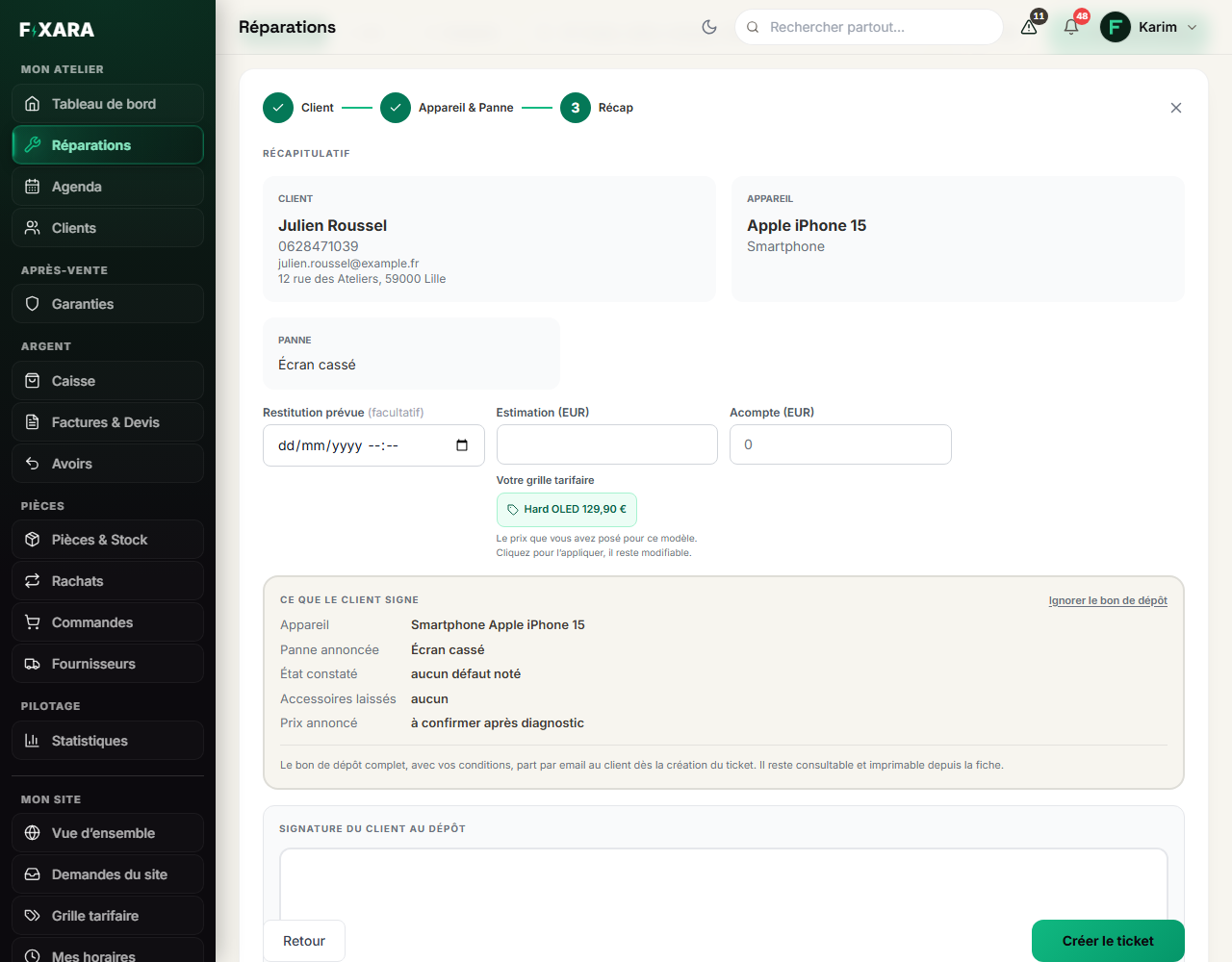
Last step. Check the customer, the device and the fault, then:
- Restitution prévue (Planned return, optional): the date and time. It is printed on the drop-off receipt and shown on the customer’s tracking page;
- Estimation (Estimate): the price you quote. If this model and fault are in your price list, your prices appear just below: one click puts them in the estimate;
- Acompte (Deposit): what the customer pays you today, if anything.
The “Ce que le client signe” (What the customer signs) box shows everything that will be printed. Have your customer sign in the box below, with a finger or stylus, then Créer le ticket (Create ticket).
 12345
123451The price quoted to the customer.
2Your price-list price for this model: one click puts it in the estimate.
3Exactly what will be printed on the drop-off receipt.
4The customer’s signature, on screen.
5The ticket is created, the customer is notified.
The customer isn’t there to sign (device dropped off by a relative, sent by post)? The Ignorer le bon de dépôt (Skip the drop-off receipt) link creates the ticket without a signature. You can have it signed later from the ticket page, Signer dépôt (Sign drop-off) button.
What is sent to the customer automatically
As soon as the ticket is created, your customer receives an e-mail with their ticket number and tracking link. If the drop-off receipt is signed, the PDF is attached to that e-mail. If it isn’t signed, nothing is attached: an unsigned receipt is worthless.
After that, another e-mail goes out automatically: “your device is ready”, when you move the ticket to Ready. If you have turned it on, a reminder is also sent for a ready device that hasn’t been collected (three at most). The receipt and the invoice, on the other hand, are never sent without an action from you.
These three messages are switched on and off in Settings, Ce que l’outil fait sans vous (What the software does without you) block.
Print the label or the drop-off receipt
Open the ticket, then Imprimer (Print). Three formats, with the real document previewed alongside:
- Étiquette (Label, 100 × 50 mm): number, customer, device and tracking QR code, to stick on the device;
- Ticket thermique (Thermal ticket, 80 mm): the short ticket, for the till;
- Bon de dépôt (Drop-off receipt, A4): the document handed to the customer.
Imprimer sends it to the printer, Télécharger (Download) saves it as a PDF.
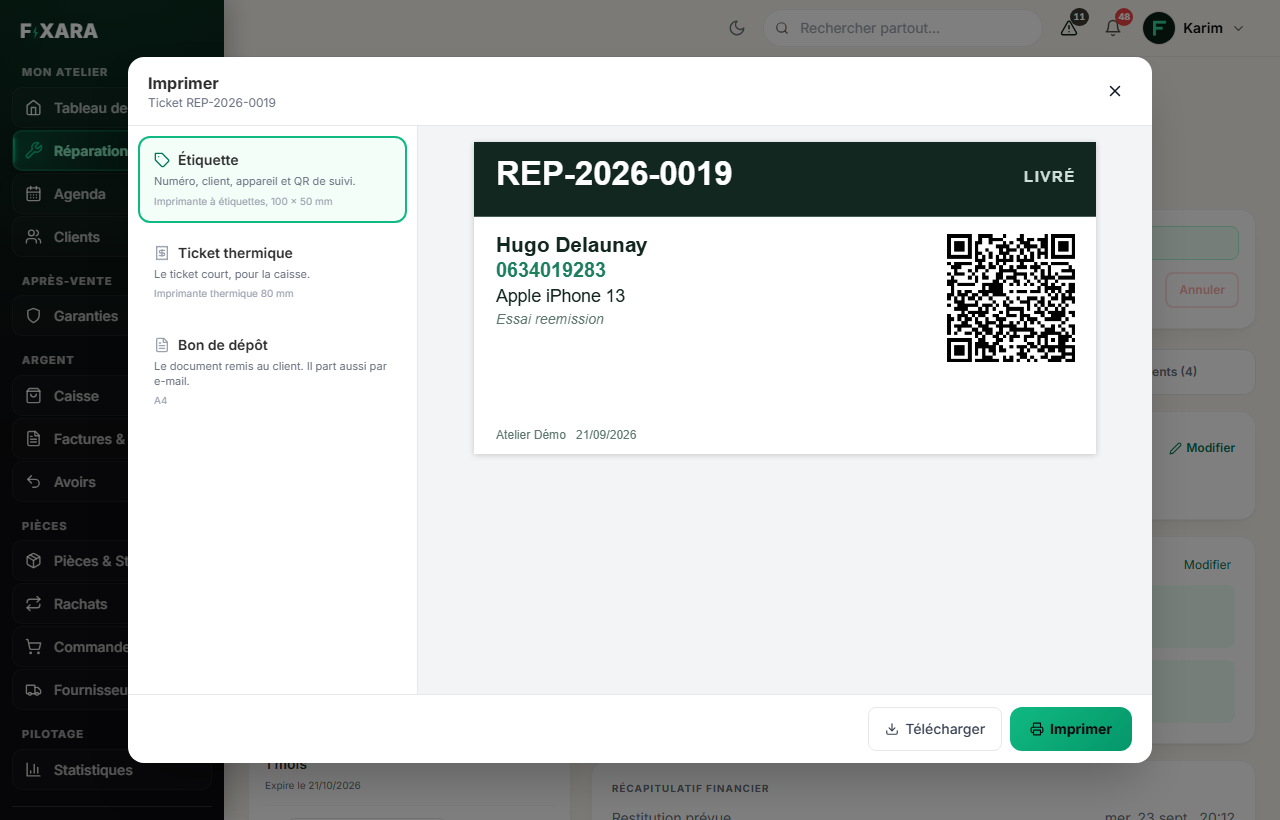 123
1231The label to stick on the device.
2The A4 drop-off receipt, with your header and both signatures.
3Print, or Download next to it.
You’re done when you see this
- The ticket appears in the Reçu (Received) column of Repairs (or Diagnostic if the fault wasn’t known).
- The customer has received the e-mail with their ticket number and tracking link.
- The drop-off receipt shows your header, your signature, the customer’s, the recorded condition and the accessories left.