


Collecting Google reviews at the counter
The QR code appears by itself at the end of the payment, while the customer is still there.
The best moment to ask for a review is when the customer has their repaired device in hand. Not three days later by e-mail.
Paste your review link
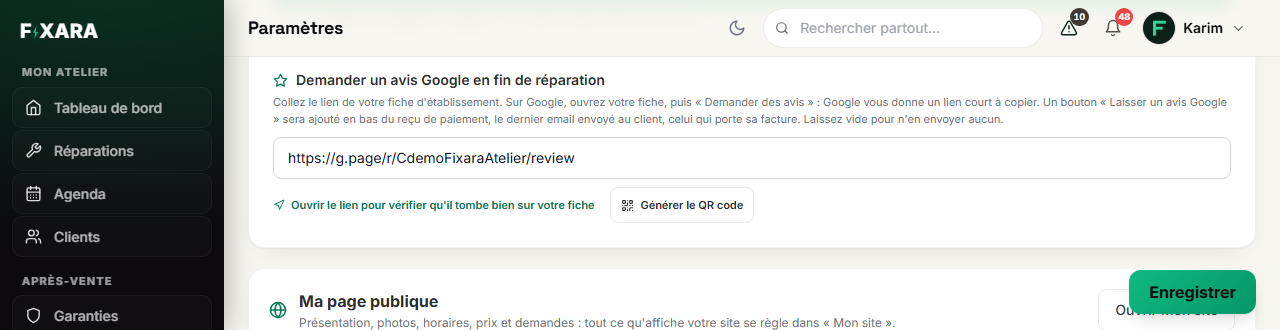
On Google, open your Business Profile, then “Ask for reviews”: Google gives you a short link to copy. Paste it into Settings, Demander un avis Google en fin de réparation (Ask for a Google review at the end of a repair) block, then Enregistrer (Save). The Ouvrir le lien pour vérifier (Open the link to check) link shows you where it leads.
 123
1231The short link given by Google.
2Check that it really lands on your profile.
3The poster to print for the counter.
A g.page/r/…/review link, a Google Maps address or your place ID: all three are accepted. Only Google links are.
Print the counter poster
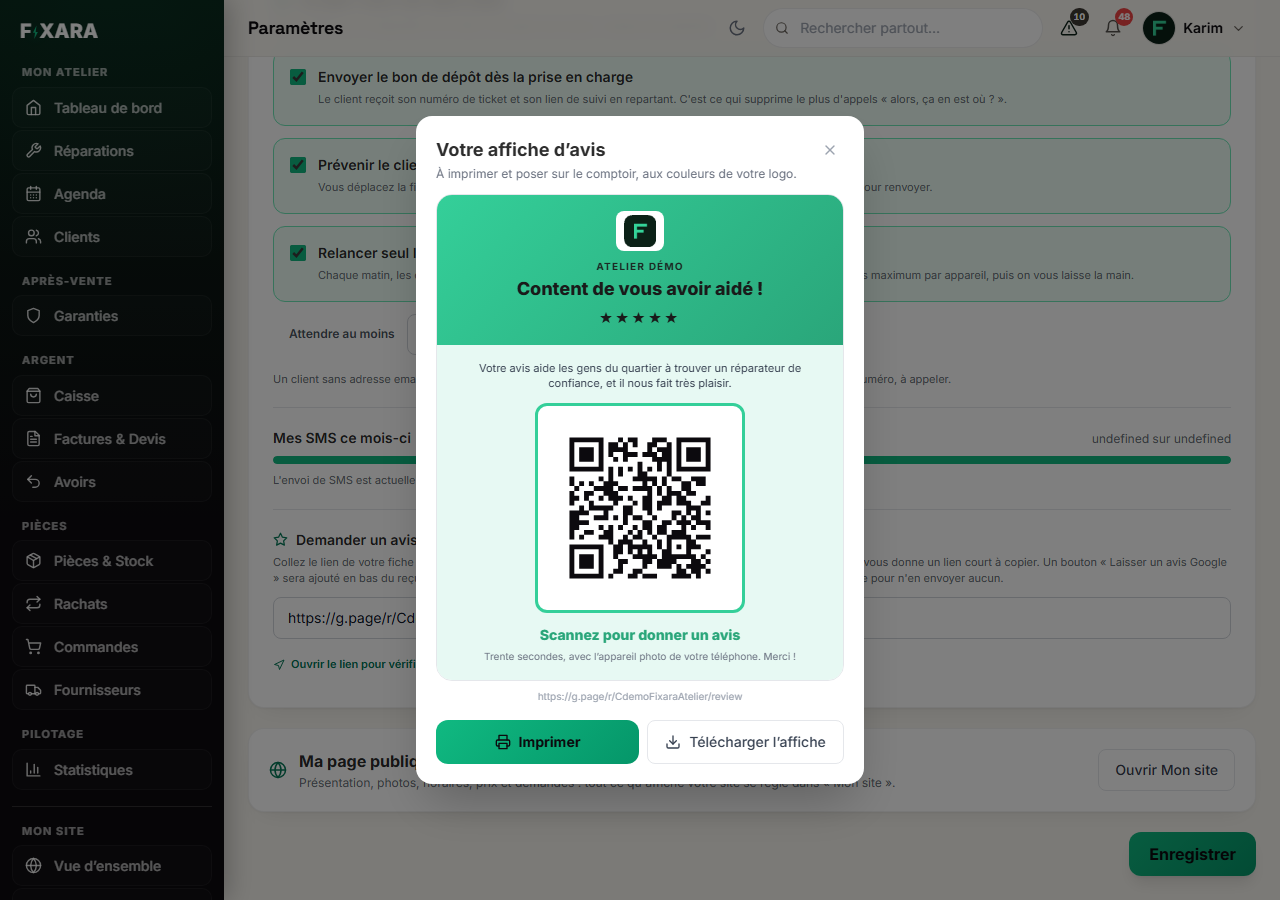
Générer le QR code (Generate the QR code) opens a poster in your logo’s colours: your name, « Content de vous avoir aidé ! » (Glad we could help!), five stars and the QR code. Imprimer (Print) prints it in A4, Télécharger l’affiche (Download the poster) keeps it as an image. Put it on the counter once.
 123
1231The customer scans it with their phone camera.
2The poster in A4, in your logo’s colours.
3Or as an image, to print elsewhere.
Let it appear at checkout
At the end of each ticket payment, the QR code appears by itself, in large. You turn the screen, the customer scans, Terminé (Done) closes it. Without a link filled in, nothing appears: the payment stays exactly the same.