


When a device comes back: after-sales and warranties
The return is created in one step from the original repair, and the link between the two is never lost.
A device that comes back is not taken in as a new ticket. It is taken in from its original repair: you find the part fitted, the date, the technician, what was invoiced, and whether the warranty is still valid.
Find the original repair
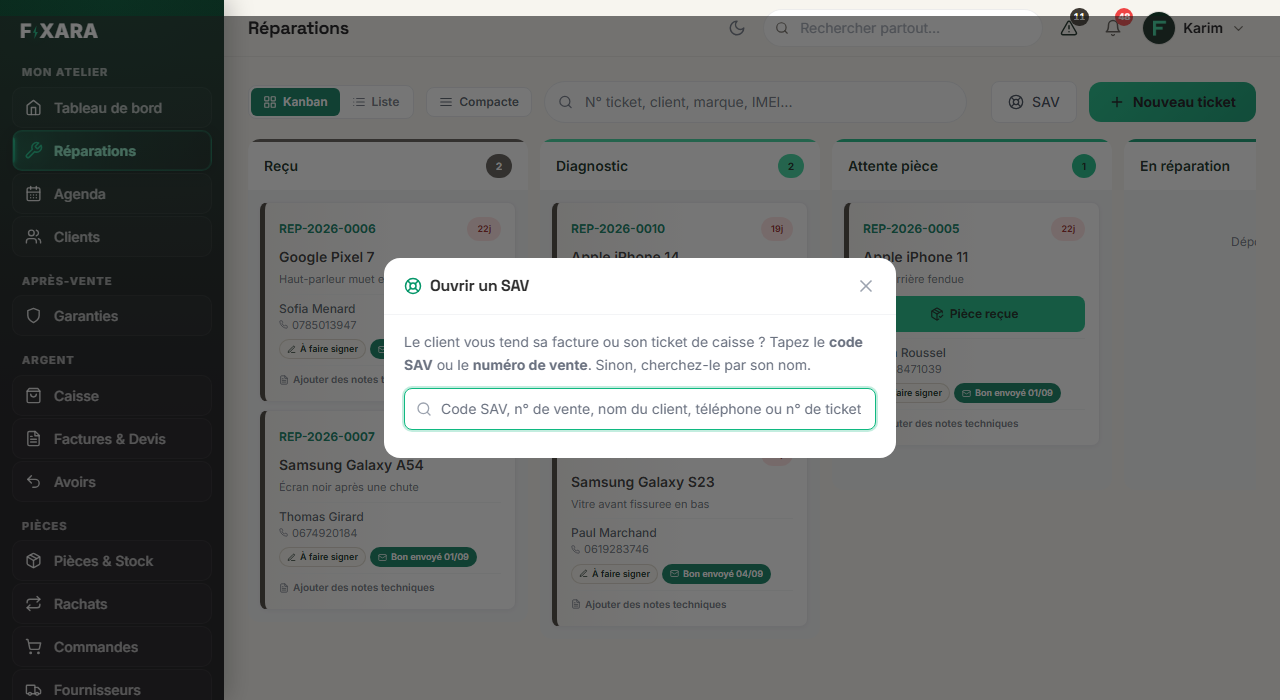
In Repairs, the SAV (After-sales) button at the top. The customer hands you their invoice or till receipt? Type the after-sales code or the sale number printed on it. Otherwise, search by their name, their phone number or the ticket number.
 12
121The SAV button, at the top of the repairs board.
2The code printed on the invoice, or the customer’s name.
“Reprendre en SAV” from the ticket page
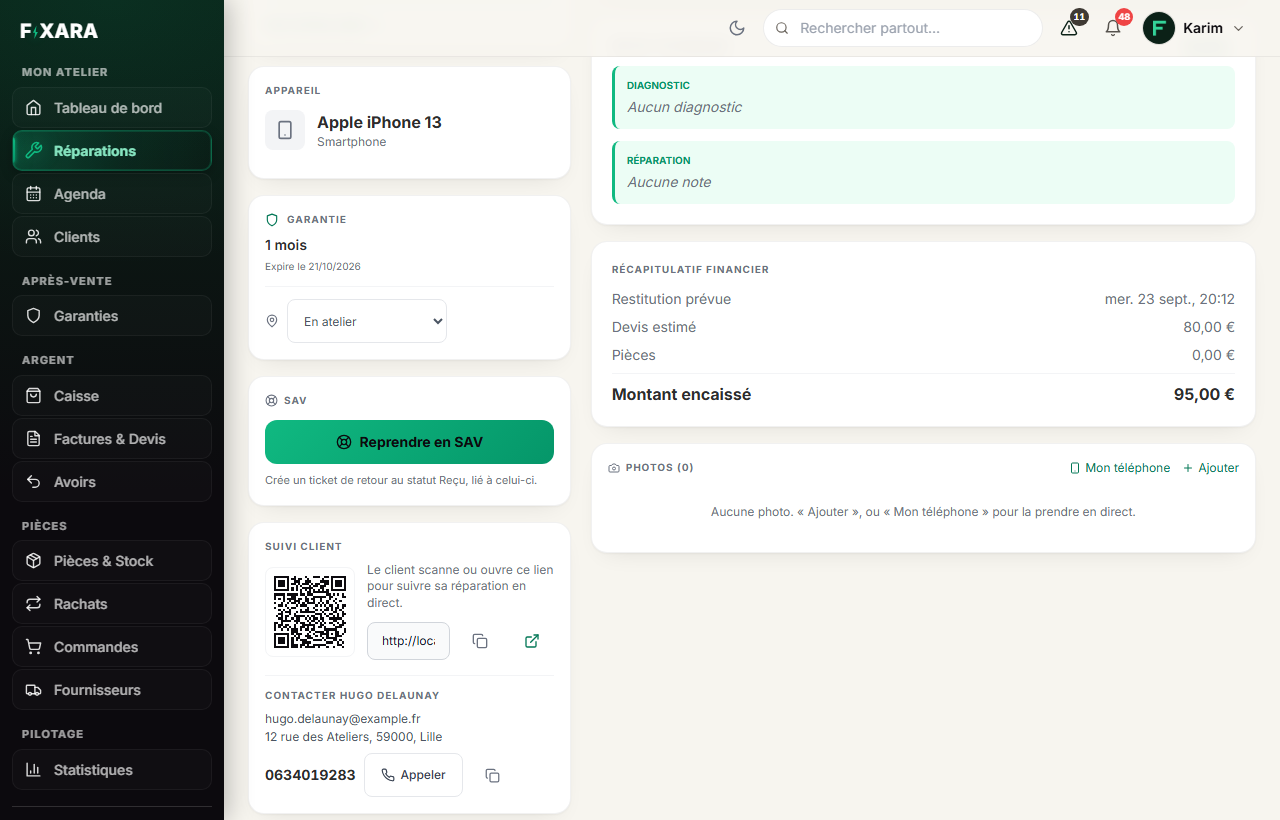
On the page of a delivered ticket, an SAV (After-sales) box carries the Reprendre en SAV (Take back under after-sales) button. One click creates the return ticket, with the status Received, linked to the original repair, and opens it straight away. The warranty, just above, tells you whether it is still covered and until when.
 12
121The repair’s warranty, and its end date.
2Creates the return ticket, linked to this one.
The customer can report the problem themselves
With the after-sales code on their invoice, your customer describes their problem on fixara.fr/sav, without an account. You are notified (bell, and a notification on your phone if you have allowed it), and their request appears in red in the ticket’s after-sales box, with two buttons: Reprendre en SAV (Take back under after-sales) or Classer (File) if it is not a real return.
When delivering the return: free, paid or refunded
When you deliver the return ticket, the checkout window says so at the top and reminds you of the three outcomes:
- Under warranty: nothing to pay, the amount is already at 0 €. Deliver;
- Out of warranty: enter the amount and take payment like a normal repair;
- Refund: deliver at 0 €, then create a credit note on the original invoice in Credit notes. It is the credit note that takes the money out of your revenue.
Keep an eye on what is still covered
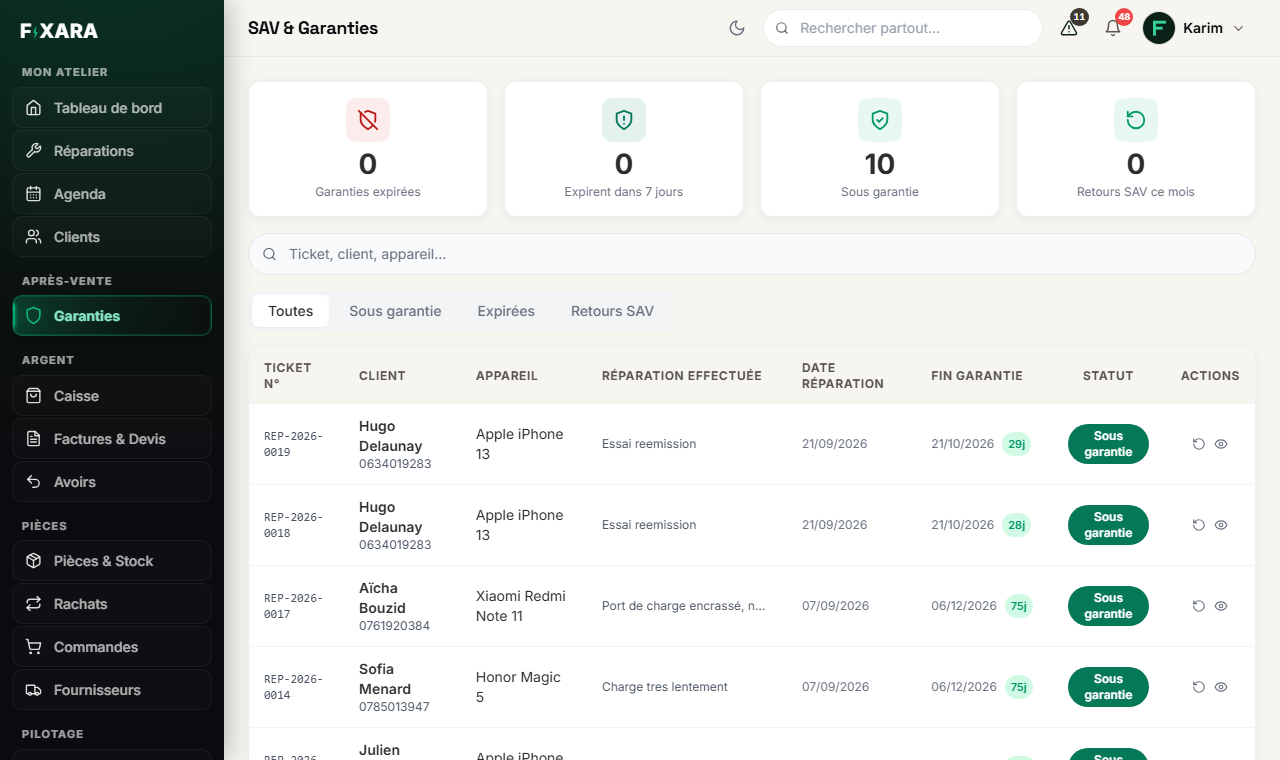
Warranties, in the After-sales menu, lists every delivered repair with its warranty end date and the days remaining. The counters at the top tell you what expires within 7 days: you are warned before the customer, and you decide on a goodwill gesture rather than having it forced on you.
 123
1231What expires within 7 days: you are the first to see it.
2All, under warranty, expired, or only after-sales returns.
3Create the after-sales return straight from the line.
The warranty is set at delivery, not at drop-off
A second-hand part, a refurbished part or a liquid damage treatment do not give the same warranty as a new screen. It is therefore set in the checkout window, when you know what you have done, and it is printed on the invoice.