


Selling at the counter, with no repair behind it
A case, a tempered glass, a charger, a second-hand phone. Scan or tap a tile, take payment, done.
The Checkout is used to sell without opening a repair. The quantity leaves the stock on its own, and the takings go into your revenue.
Add the items
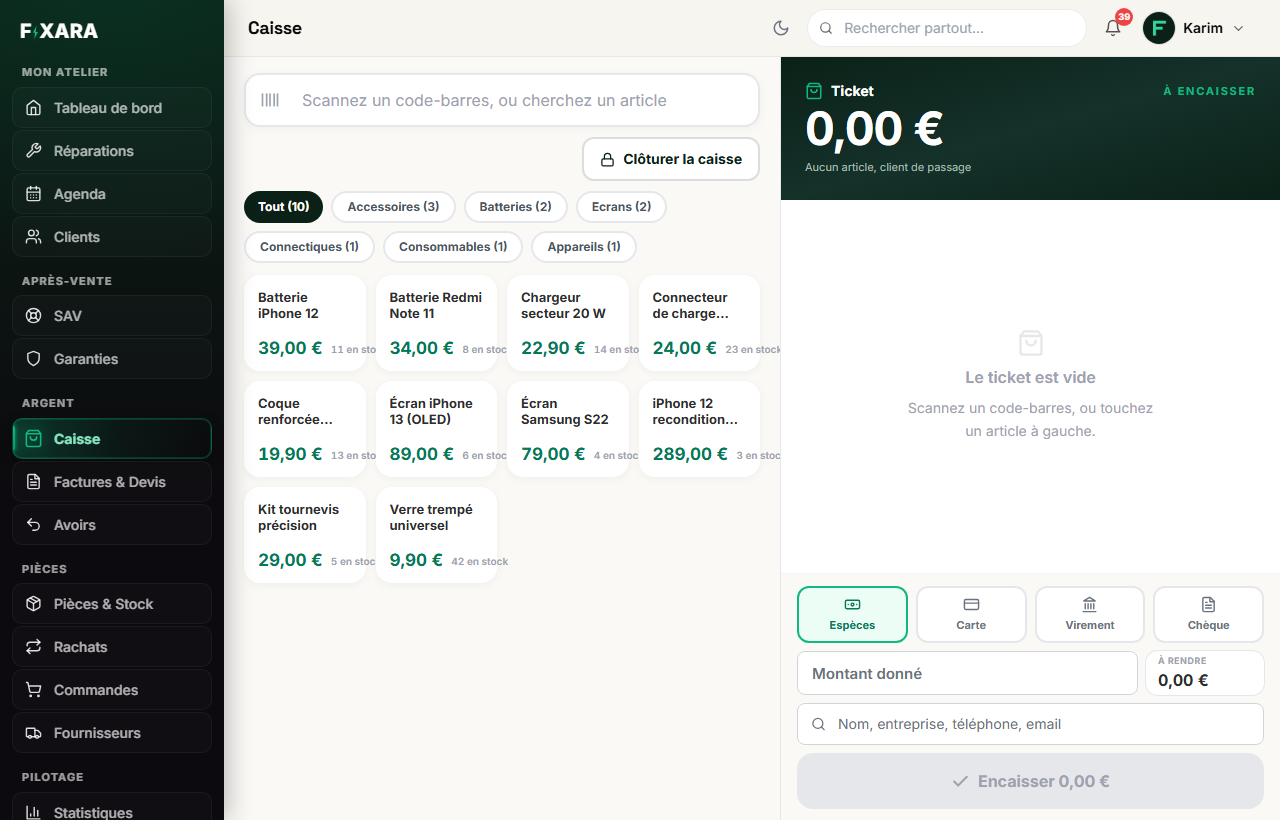
Three ways, on the left of the screen: scan the barcode (the cursor is already in the field), type the name of the item, or tap its tile on the shelf. The chips above filter by category. Each tile shows the price and the quantity in stock.
On the right, the receipt fills up: + and – change the quantity, and the price can still be edited line by line. Faire une remise (Apply a discount) applies to the whole receipt.
 1234567
1Scan a barcode, or type the name of the item.
2Or tap its tile: the green number shows how many you have added.
3The total to collect, in large print.
4The payment method.
5Part in cash, the rest by card.
6Optional: the customer, if you want the sale in their name.
7Put the sale aside to serve someone else.
No stock entered? The express shelf
Rayon express (Express shelf), at the top of the shelf (or Choisir mes accessoires (Choose my accessories) on an empty checkout) opens a list of common accessories: case, tempered glass, hydrogel protector, cables, chargers, earphones, power bank, car mount… Tick what you sell and type your price including VAT. An item missing? Type its name and Ajouter (Add). Then Enregistrer (Save).
Each ticked item becomes a tile in the right tab: one click, and it is on the receipt. Nothing is counted, nothing runs out, and the sale remains a real sale (number, Z report, VAT).
No price is filled in in advance: it is yours. Tick Indiquer aussi le prix d’achat (Also enter the purchase price) to see your margin in the reports; without it, no margin rather than a wrong margin. Unticking an item removes it from the checkout without erasing past sales.
Take payment
Choose the payment method. In cash, type the amount given: the change to give back is shown next to it. The customer pays part in cash and the rest by card? Paiement mixte (Split payment): you enter the first part, the second takes the rest.
Then Encaisser (Take payment). The sale gets a VTE-… number and the stock goes down.
A customer is waiting behind another? Put the sale aside
Attente (On hold) stores the current receipt without taking any payment or removing anything from stock. It reappears at the top of the checkout (“1 vente en attente”, 1 sale on hold): one click resumes it as it was. Sales on hold are shared between your workstations, 30 at most.
What comes out of the checkout is not an invoice
The law does not require an invoice for the sale of goods to a private customer who does not ask for one, and almost nobody asks for one for a case. The sale nevertheless exists: it carries the revenue, the stock movement and the payment method, with its own number (VTE-…).
The customer wants an invoice
Right after taking payment, the checkout shows the Le client veut une facture (The customer wants an invoice) button: you enter their details, and the same sale gets an invoice number. The takings are never counted twice. All your sales then remain in Invoices & Quotes, with the Vente de produit (Product sale) label.
In the evening, close the till
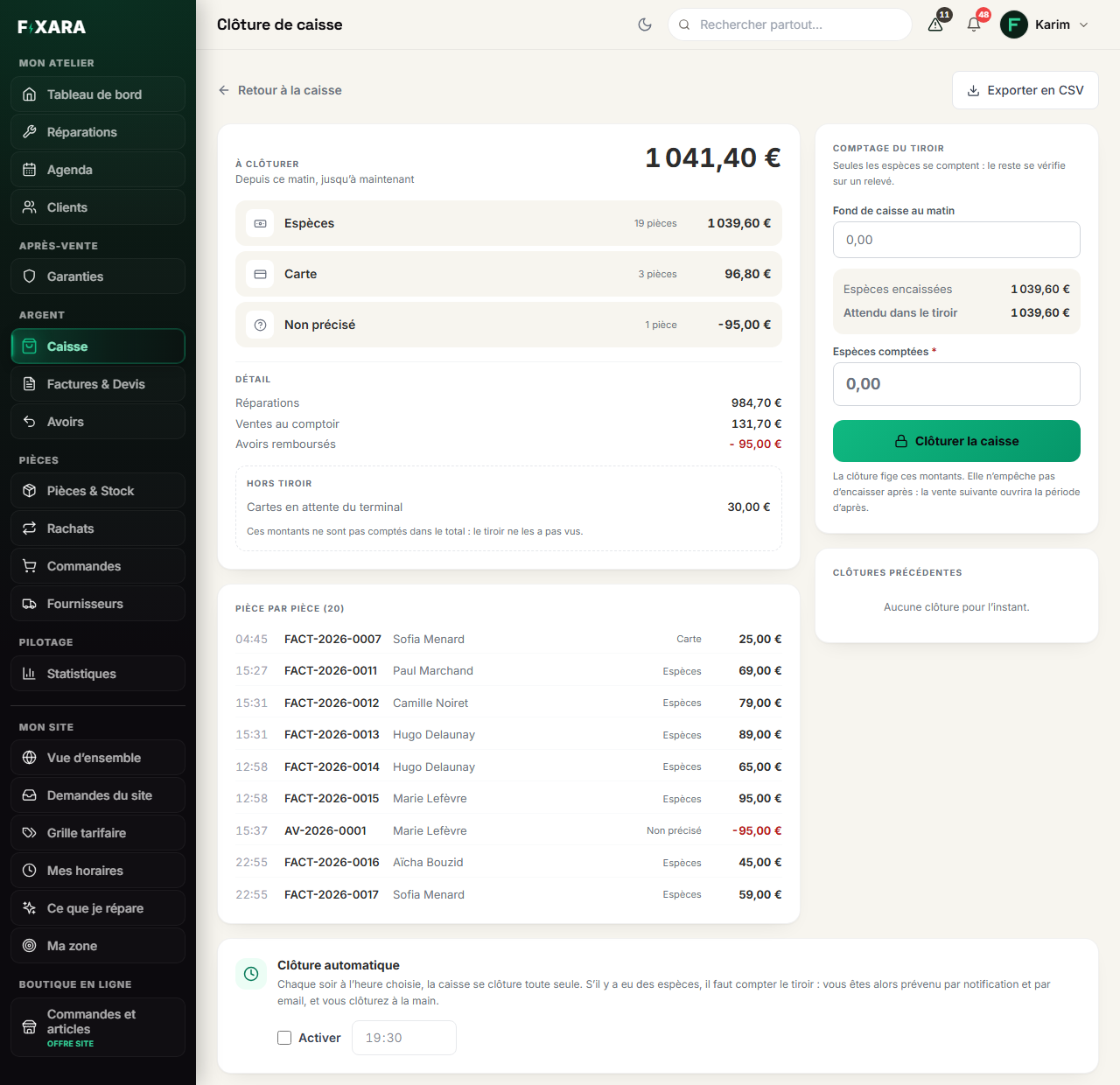
Clôturer la caisse (Close the till), at the top of the shelf, opens the day’s summary: the total, then what was collected in cash, by card, by bank transfer and by cheque, and the breakdown between repairs, counter sales and refunded credit notes. Below, document by document, each invoice and each sale of the day.
On the right, the drawer count: only cash is counted. Enter the morning’s cash float, count your notes and coins, type the total in Espèces comptées (Cash counted), then Clôturer la caisse. The amounts are frozen, and you can carry on taking payments: the next sale opens the following period.
 1234567
1The day’s total, payment method by payment method.
2Repairs, counter sales, refunded credit notes.
3Card payments the terminal has not confirmed yet: not in the total.
4The morning’s cash float.
5What you counted in the drawer.
6Closing freezes the day’s amounts.
7Or every evening at a set time, on its own.
Automatic closing, at the bottom of the same screen: tick Activer (Enable) and choose the time. If there was cash during the day, Fixara does not close for you, because the drawer is counted by hand: it alerts you by notification and by email. Your dashboard also reminds you of a till from the day before that was not closed.
Selling a phone you bought back
A phone you bought from a private individual is already in your checkout, in the Appareils (Devices) tab (see Buying back a phone). Tap its tile, or scan its IMEI: it is its barcode.
Choose the warranty, in front of the customer
Below the phone’s line, the Garantie (Warranty) menu offers 3, 6, 12 or 24 months, or Sans garantie commerciale (No commercial warranty). Nothing is chosen by default. The duration is printed on the receipt and the invoice, below the name of the phone, with its IMEI: it is the proof of which device was sold.
If you charge VAT: the margin scheme
A private individual did not charge you VAT when selling you their phone. You therefore do not owe it on the resale price, but on your margin (in France: art. 297 A du CGI). Fixara applies it automatically to phones that come from a buyback: the line shows no VAT (“Marge” (Margin) column), the invoice carries the mention “Régime particulier – Biens d’occasion” (Special scheme, second-hand goods), and the VAT due on the margin is calculated separately.
Example (at the French rate of 20 %): bought back for 180 €, resold for 300 €. The VAT due is 20 € (on a 120 € margin), not 50 €. A discount lowers the margin, and therefore this VAT; a credit note gives it back.
Under the small business VAT exemption, nothing changes: you charge VAT on nothing.
In the Z report, the “Occasion (marge)” line
The till closing breaks down your sales by VAT rate, plus an Occasion (marge) (Second-hand, margin) line: what the second-hand phones brought in, and the VAT due on their margin. That is the amount you declare for these sales. Have the principle confirmed by your accountant.